AI Occupancy Detection
Last updated: April 2026
Scenario:
This page explains how to integrate AI Occupancy Detection (People counting alarm) with Genetec Security Center.
1. Camera Settings
1.1 Detection Area Settings
1.2 Schedule Settings
1.3 Alarm Notification Settings
1.4 Time Synchronization
2. Genetec Settings
2.1 Event Notification Settings
2.2 Event-to-Action Settings (Optional)
3. How It Works
1. Camera Settings
This section explains the procedure for configuring AI Occupancy Detection on the camera.
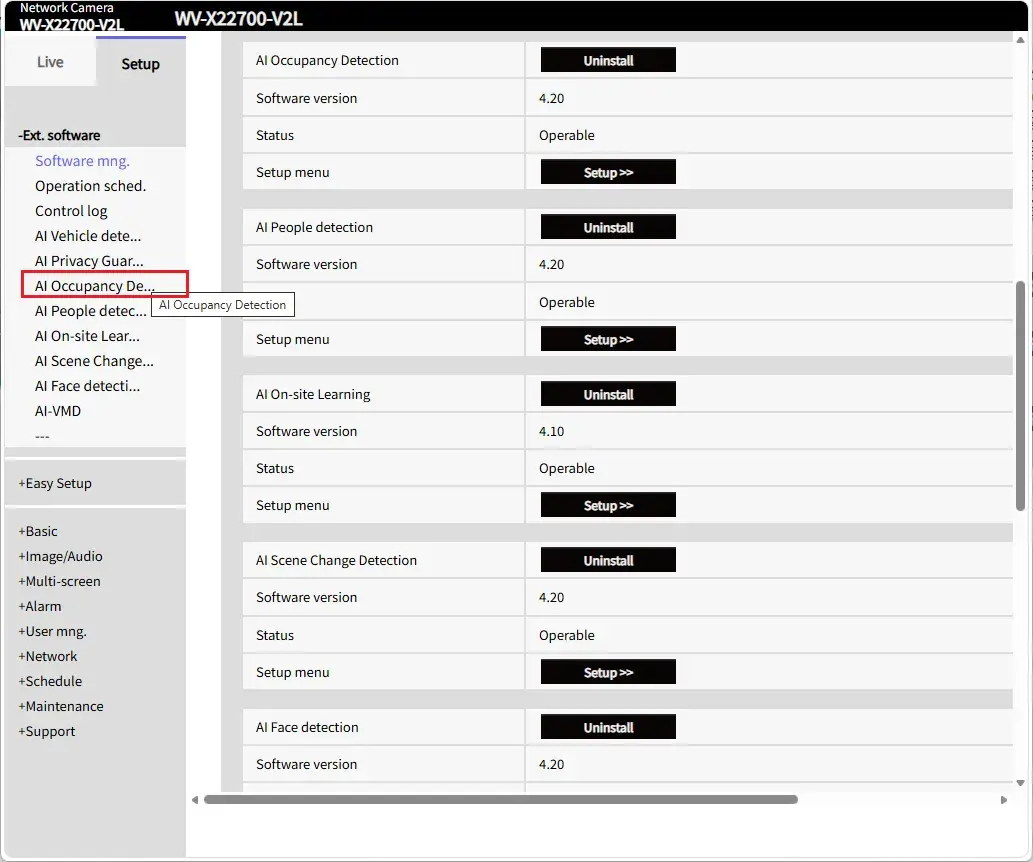
Open the camera settings screen and go to [Ext. software] > [AI Occupancy Detection].
1.1 Detection Area Settings
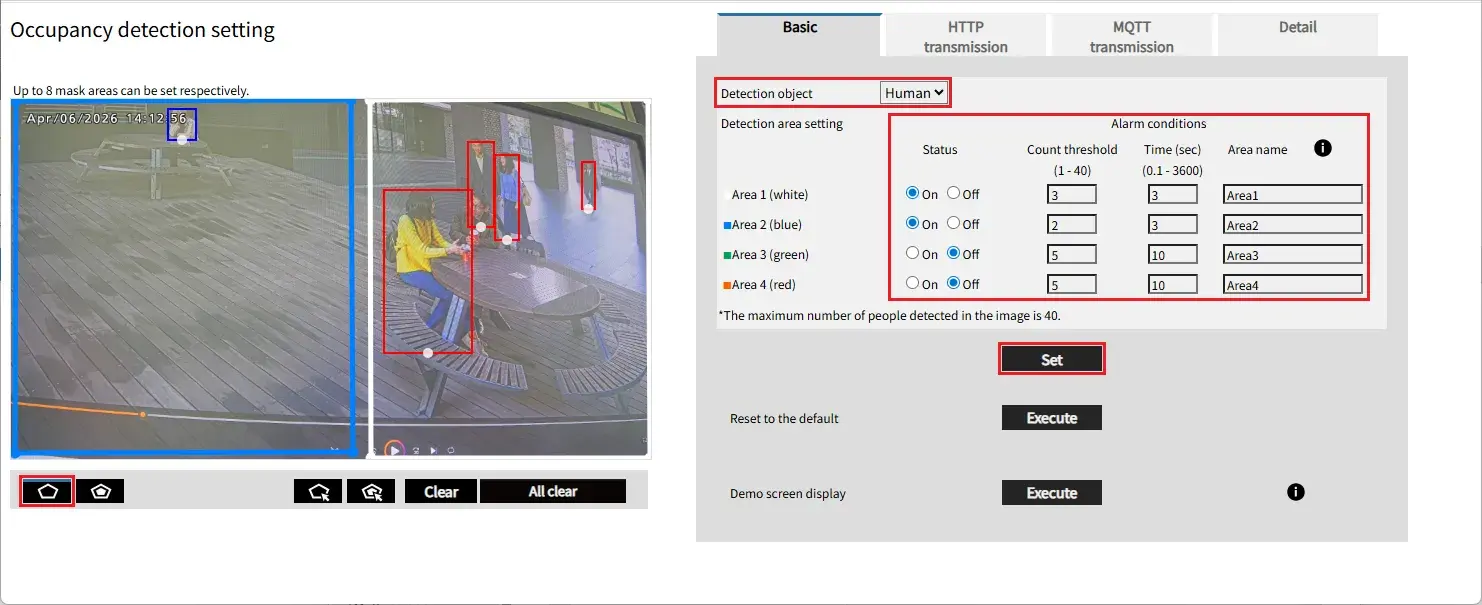
Go to the [Basic] tab.
Select the object to be detected in [Detection object] (Human / Vehicle / Bicycle).
Specify the area, set the [Count threshold] / [Time (sec)], and click the [Set] button.
1.2 Schedule Settings
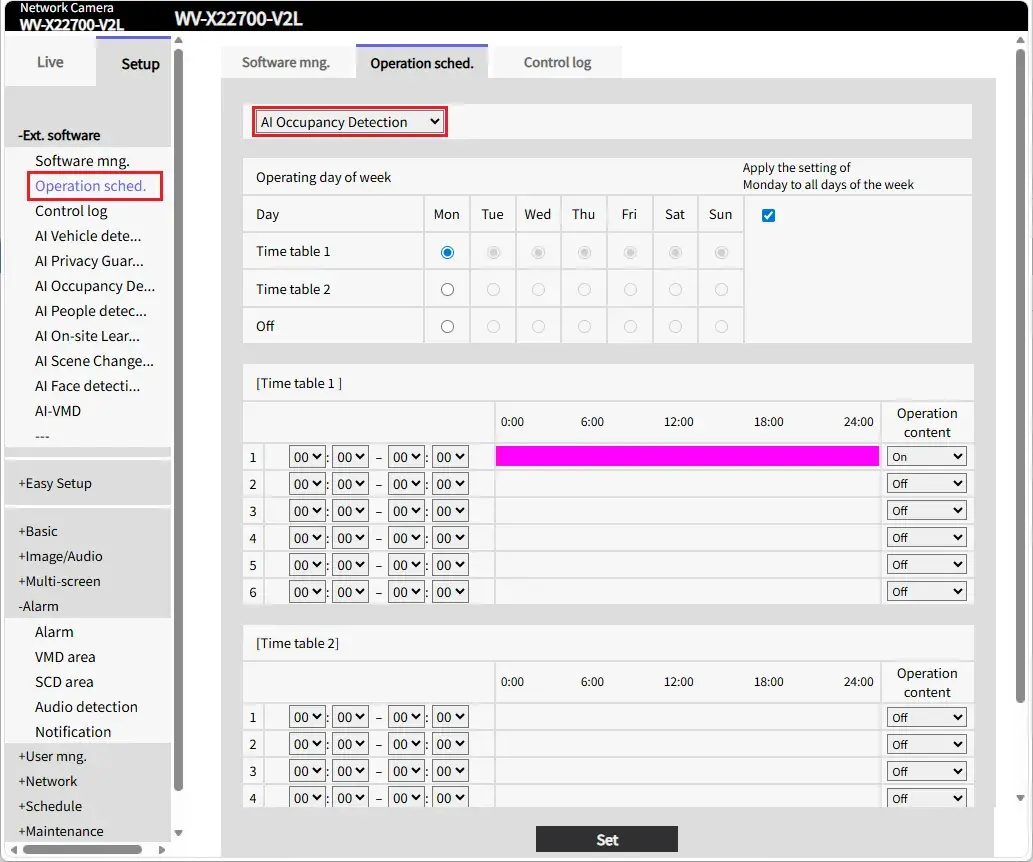
Go to [Ext. software] > [Operation sched.].
Go to [AI Occupancy Detection], and check that the schedule is enabled.
1.3 Alarm Notification Settings
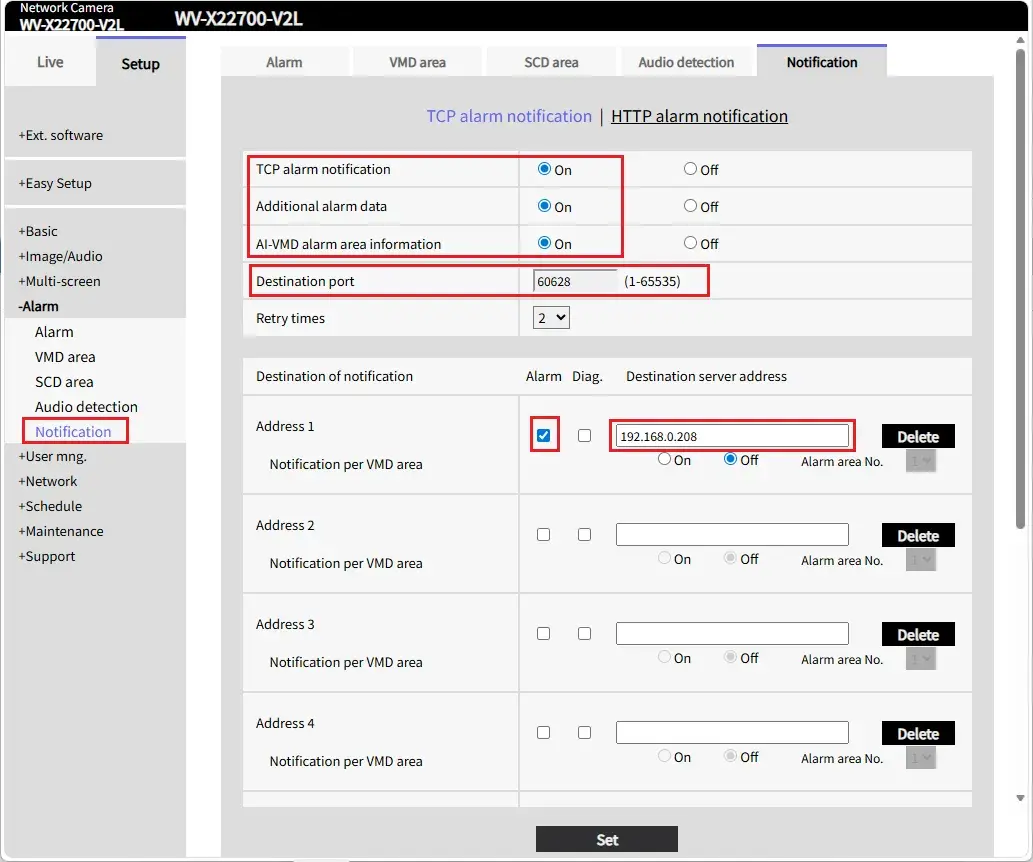
Go to [Setup] > [Alarm] > [Notification].
Verify that [TCP alarm notification], [Additional alarm data], and [AI-VMD alarm area information] are set to [On], and that the [Destination port] is assigned a port number by Security Center.
Note:
The [Destination server address] under [Destination of notification] is configured.
This setting is automatically applied when the camera is registered with Security Center.
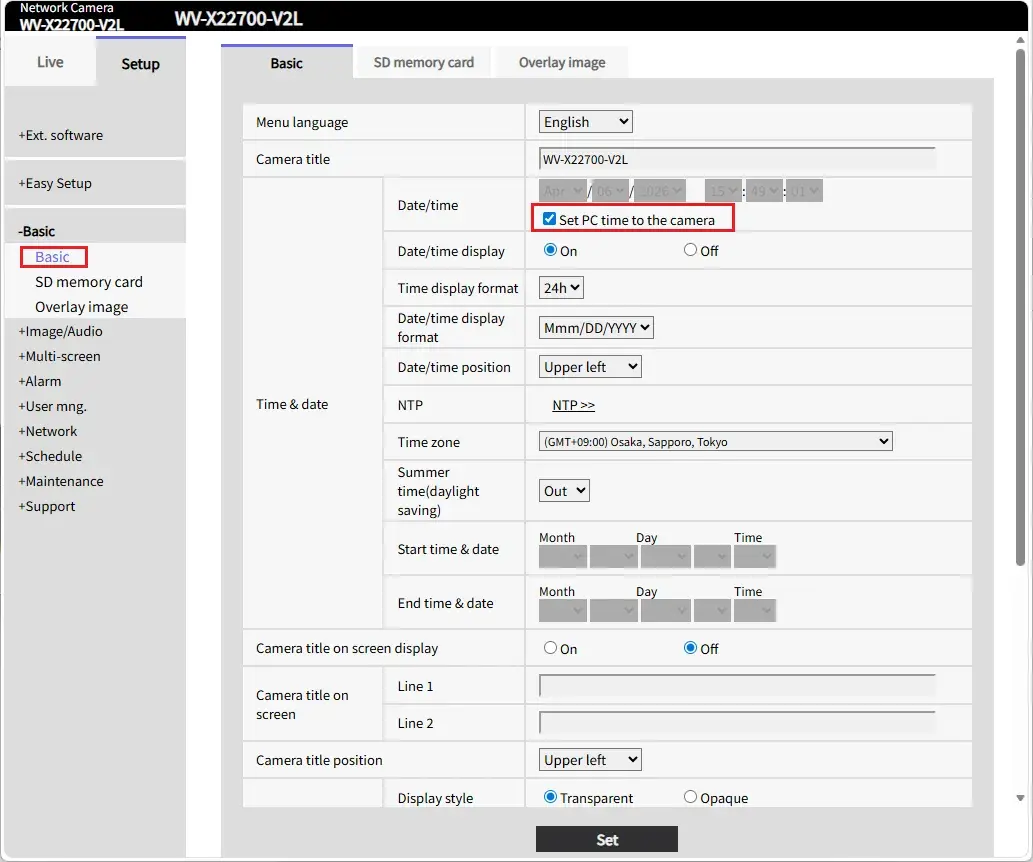
1.4 Time Synchronization
Go to [Setup] > [Basic], then under [Time & date] > [Date/time], check [Set PC time to the camera], and click [Set].
2. Genetec Settings
2.1 Event Notification Settings
Configure the settings so that alarms can be received in Security Desk.
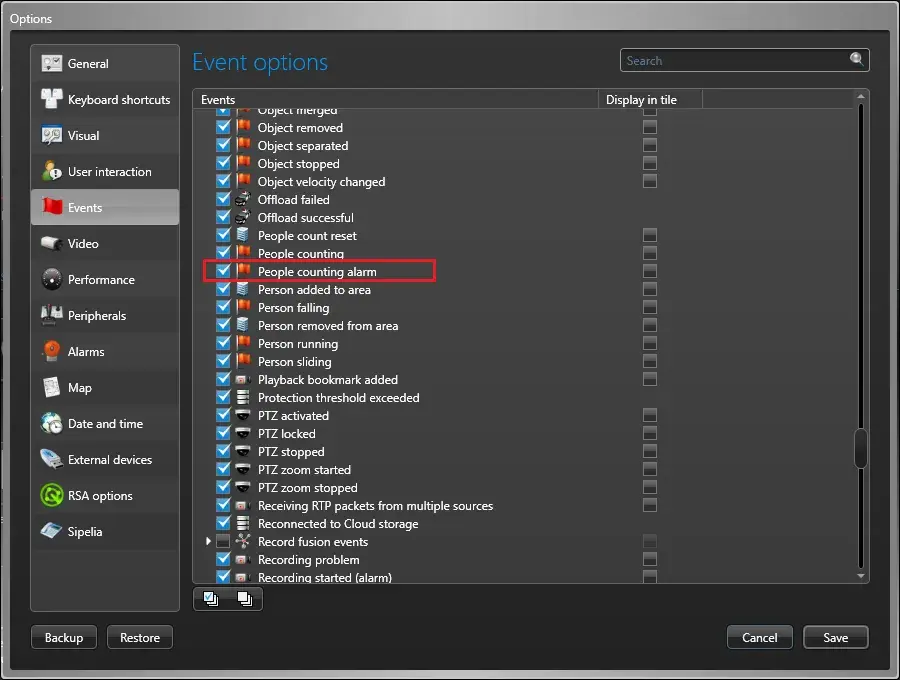
1. Open Security Desk, go to [Options] > [Events] > [Event options].
2. Enable the [People counting alarm] event, then click [Save].
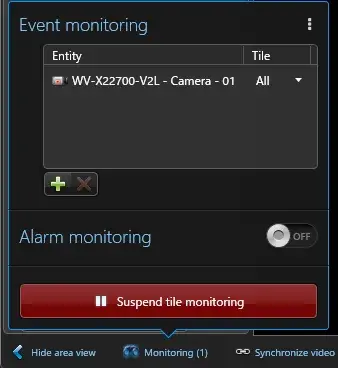
3. Go to [Security Desk] > [Tasks] > [Monitoring].
4. Click [Monitoring] in the bottom-left menu, then click the [+] button to add the target camera.
2.2 Event-to-Action Settings (Optional)
When an AI Occupancy Detection event occurs, you can configure an action to be executed.
1. In Security Center, go to [Config Tool] > [Automation] > [Actions].
2. Click the [+] button.
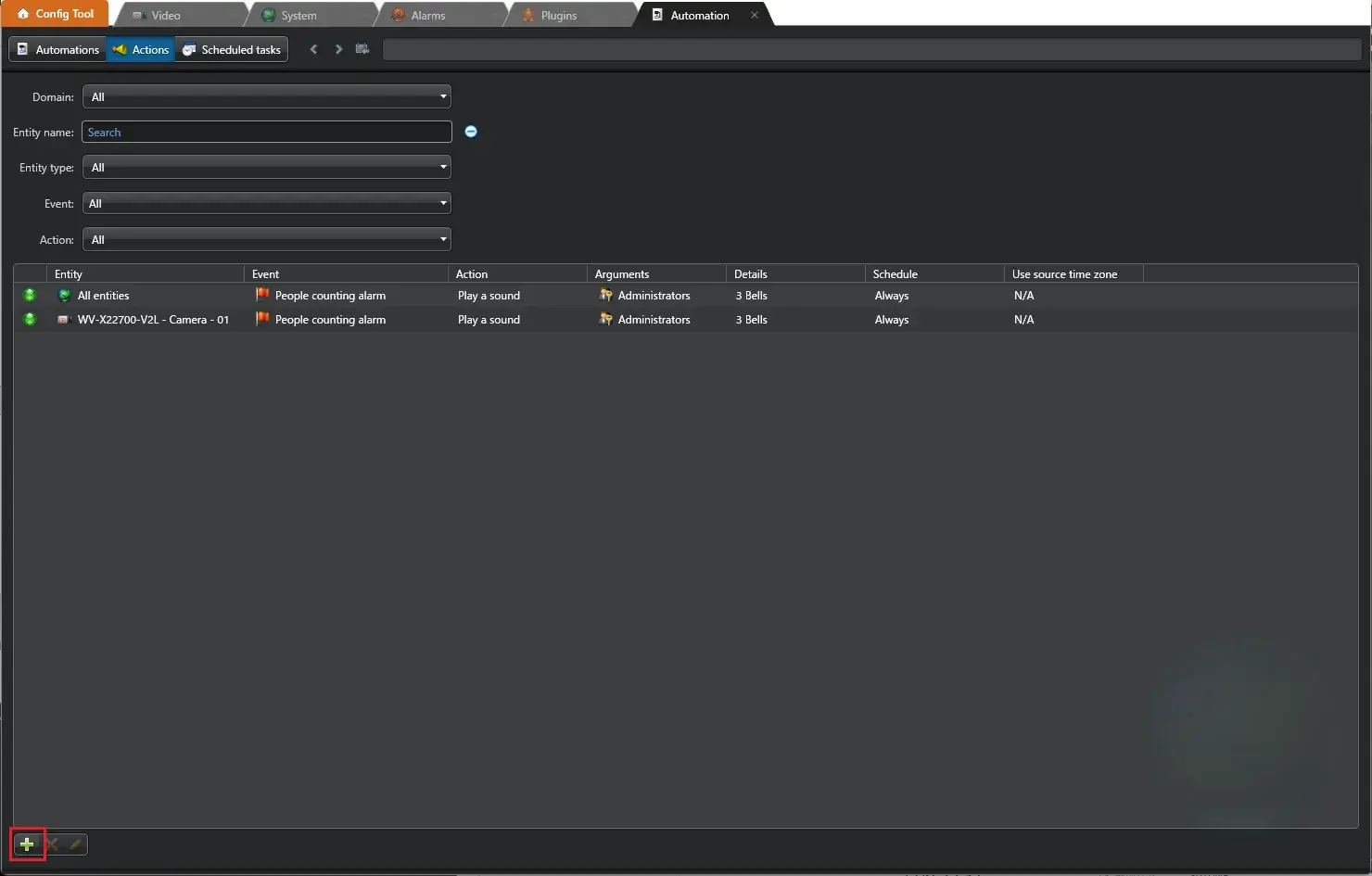
3. Set the parameters as follows.
- When: Select [People counting alarm]
- From: Select the target camera
- Action: Select the target action
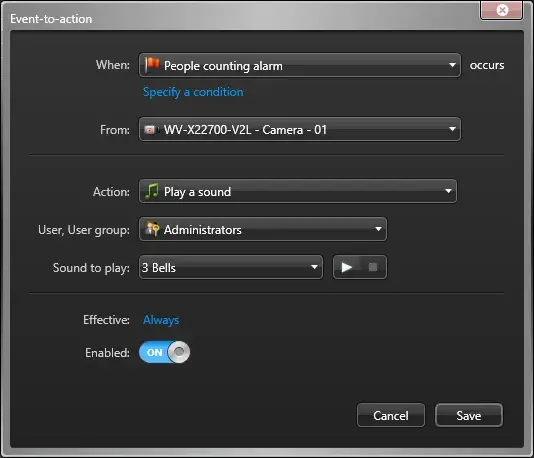
4. Click [Save].
3. How It Works
1. Open Security Desk, go to the [Monitoring] tab.
2. When an AI Occupancy Detection occurs, a [People counting] event appears in the [Monitoring] tab.

Genetec Security Center 5.13.3 / Driver Pack 13.5