How to use the Data Migration Tool for Advanced Shared Database?
- Video Insight VMS
- Operation
Description: The data migration tool facilitates the transfer of data, specifically from the tables (i.e. dbo.videofiles, dbo.videofileslog, dbo.systemlog), from a centralized database to a local database. It is essential to run the data migration tool on each individual Video Insight Server after enabling the Advanced Shared Database.
Note:
It is strongly advised to execute the data migration tool for one Video Insight Server at a time. Failing to do so could adversely affect the performance of the centralized database and potentially disrupt the operation of the other shared Video Insight Servers.
Follow the steps to perform data migration from the central database to the local database:
- Open a browser and navigate to www.downloadvi.com.
- Look for the “Data migration tool for Advanced Shared DB”.
- Click on the link to download the zip file.
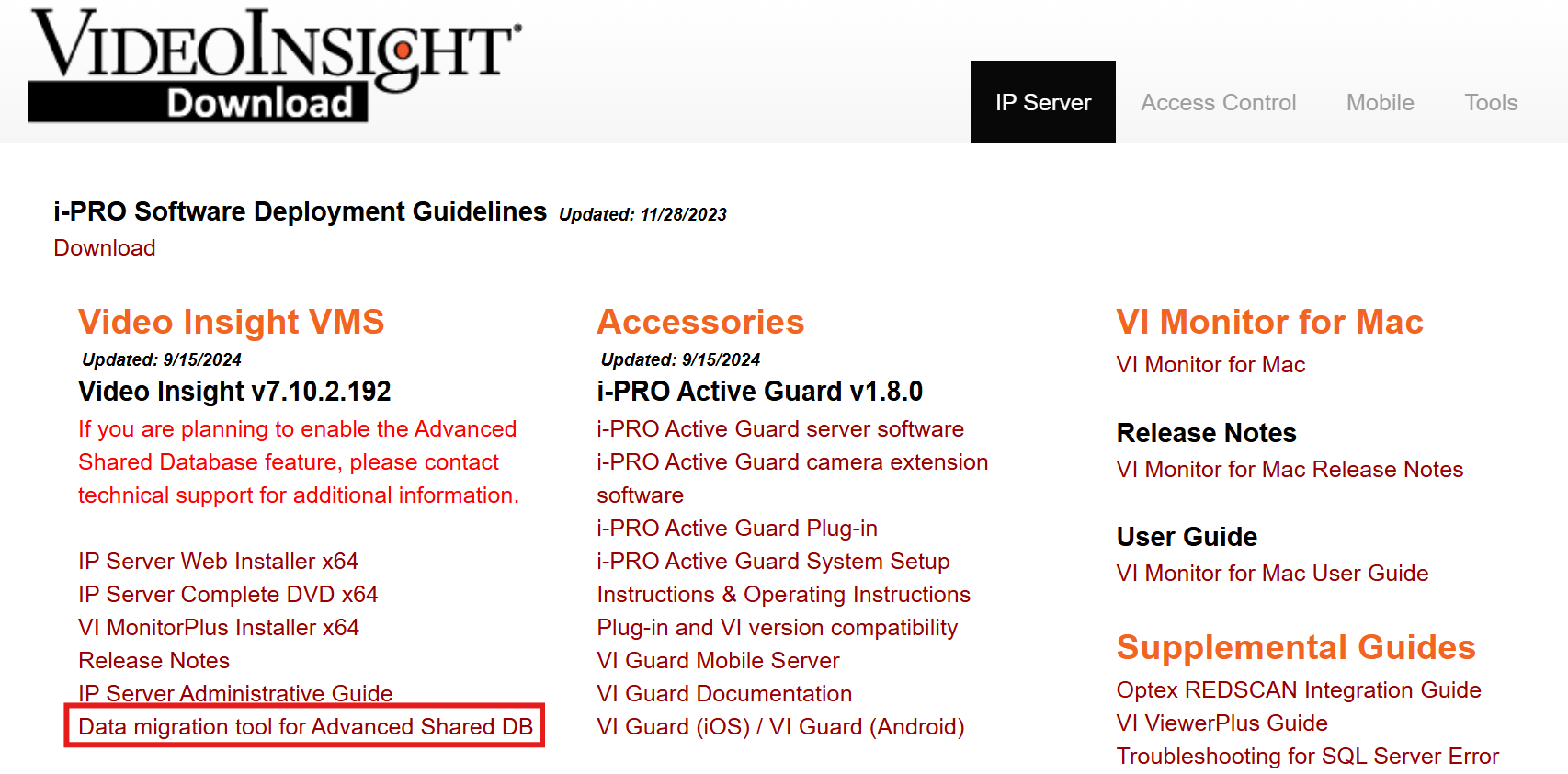
- Extract the zip file which contains the DataUtility.exe.
- Run the DataUtility.exe.
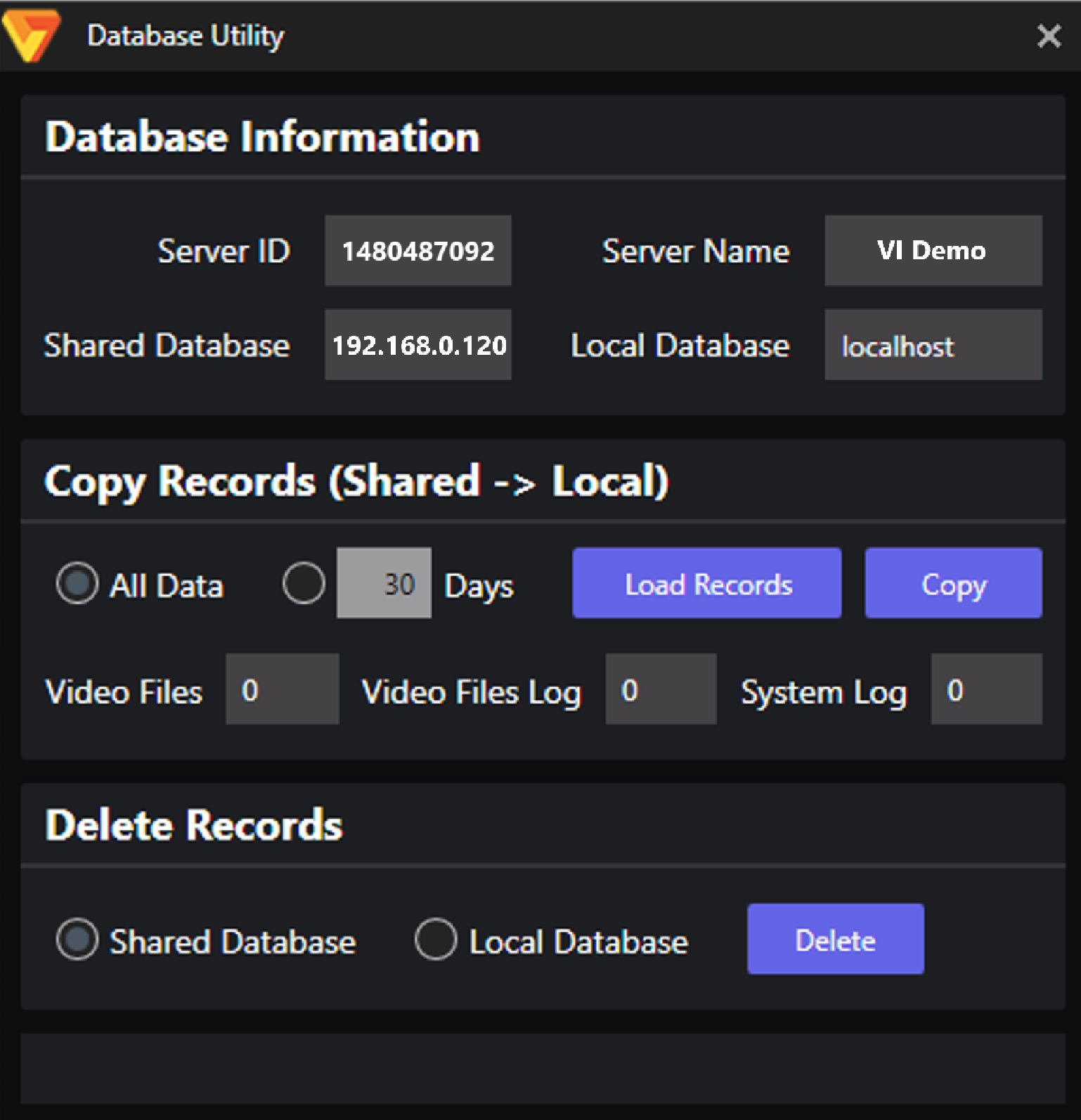
DataUtility.exe Menu
- Choose either “All Data” or “30 Days” based on your preference. Selecting “All Data” will initiate the transfer of every piece of data associated with the configured ServerID. Conversely, the “30 Days” option will limit the transfer to only the records from the past 30 days, rather than all available data.

DataUtility Transfer in Progress
- Hit “Load Records” to gather the log information.
- Once the numbers are populated for Video Files, Video Files Log, and System Log, you can click “Copy” to begin transferring the data from the centralized database to your local database.
- Data transfer will take time based on the amount of logs present for the particular ServerID.
Troubleshoot Info:
If you receive a message from Microsoft, it is likely a result of Windows' security features detecting an unverified application. There is no need for concern, as this application is entirely safe to use.
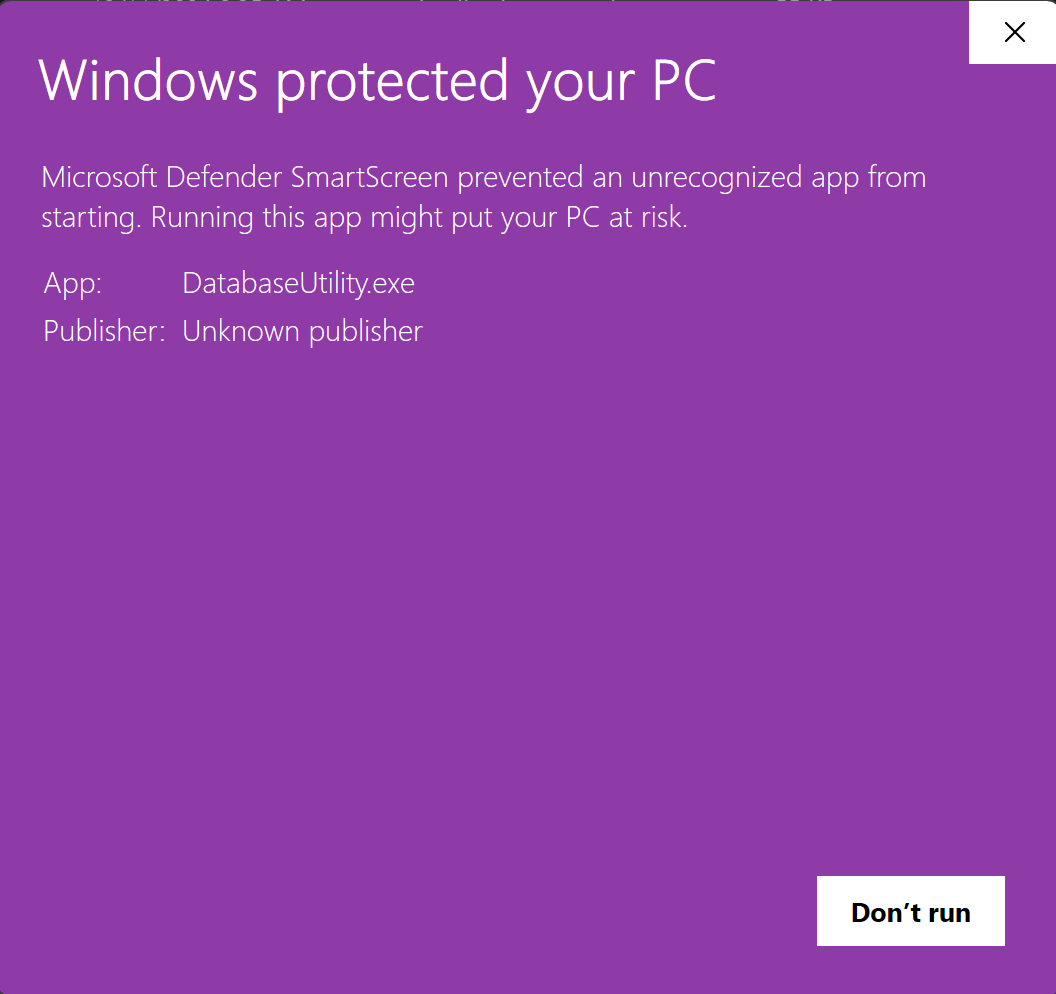
Microsoft Defender Message on Publisher
- To open the file, you will need to unblock the application by right clicking on the DataUtility.exe and check the “Unblock” option. Then hit OK.
- Run the DataUtility.exe again and the application will open.
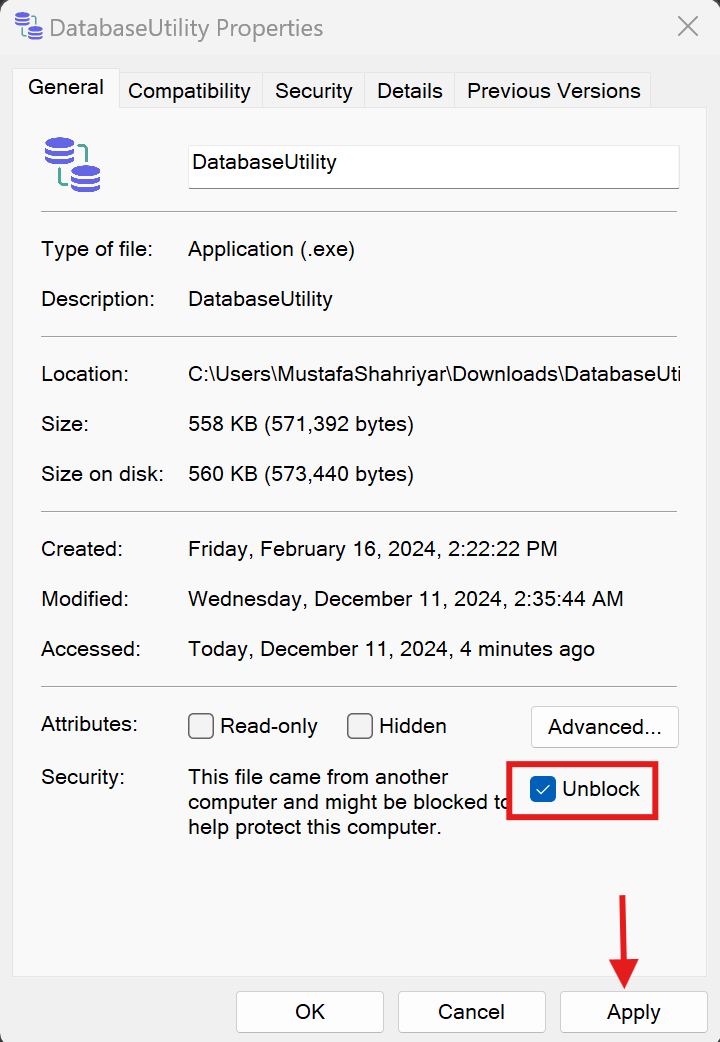
DataUtility Properties
Article number:en123726
Last updated:June 23, 2025
Was this article helpful?