AI Audio Detection
Last update: Sep, 2024
AI audio detection can recognize and detect sounds of Yell, Glass break, Vehicle horn, gunshots, and other noises.
For Audio Detect (*Models that do not support the AI engine), please refer to Audio detection page.
<Genetec settings>
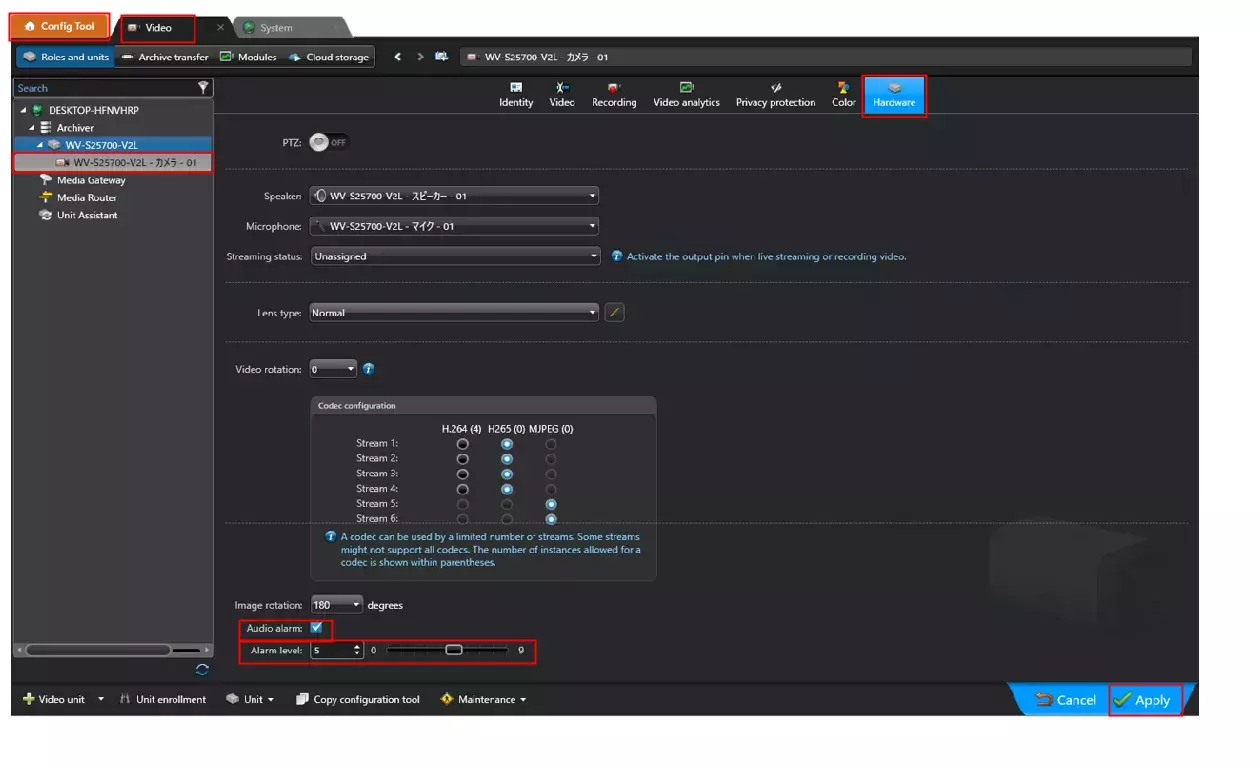
1. Select [Config Tool] - [Video].
2. select target camera.
3. Selecting Hardware will open the [Hardware] screen.
4. Set [Audio alarm] and [Alarm level] , finally click [Apply].
<Camera settings>
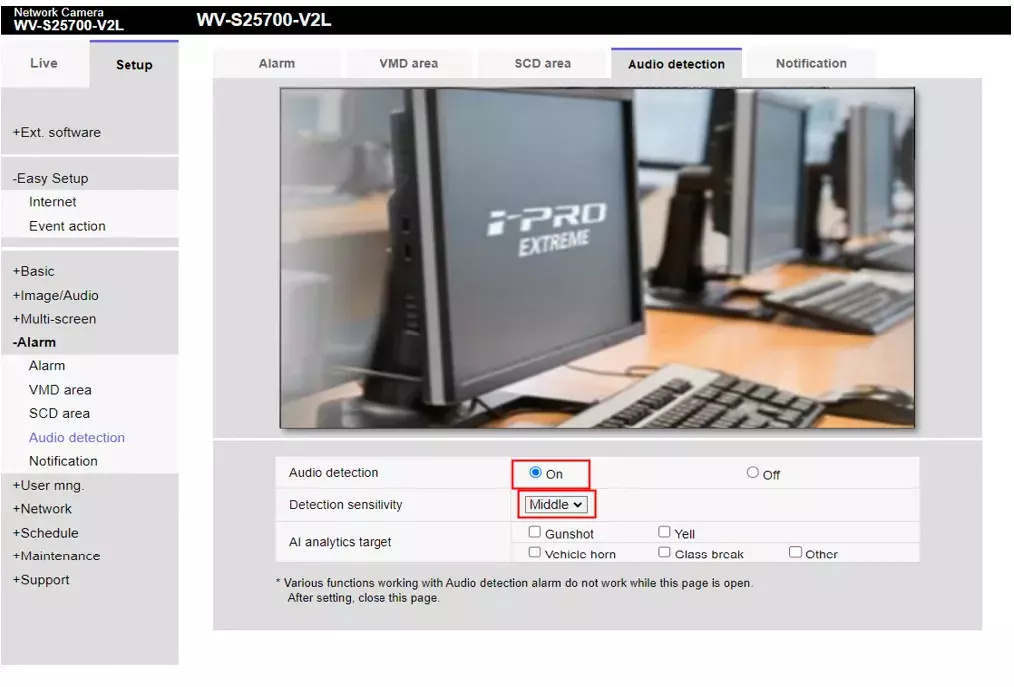
1. When you perform 4 on the Genetec side, the settings will be reflected in the "On/Off" and [Detection Sensitivity] of [Audio Detection] on the camera side.
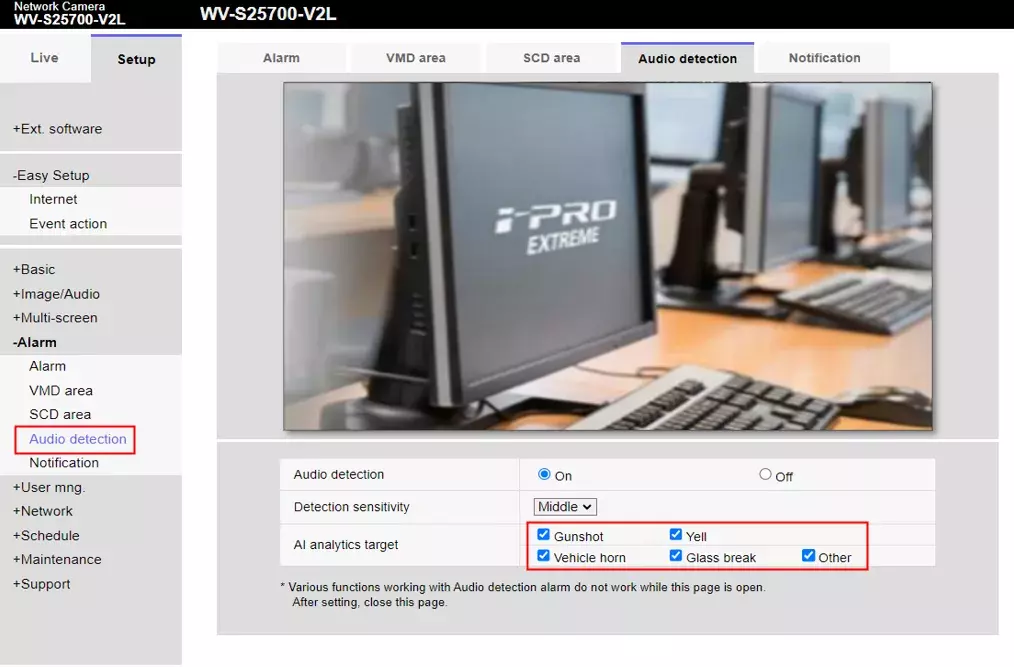
2. Check the target audio of [AI analytics target].
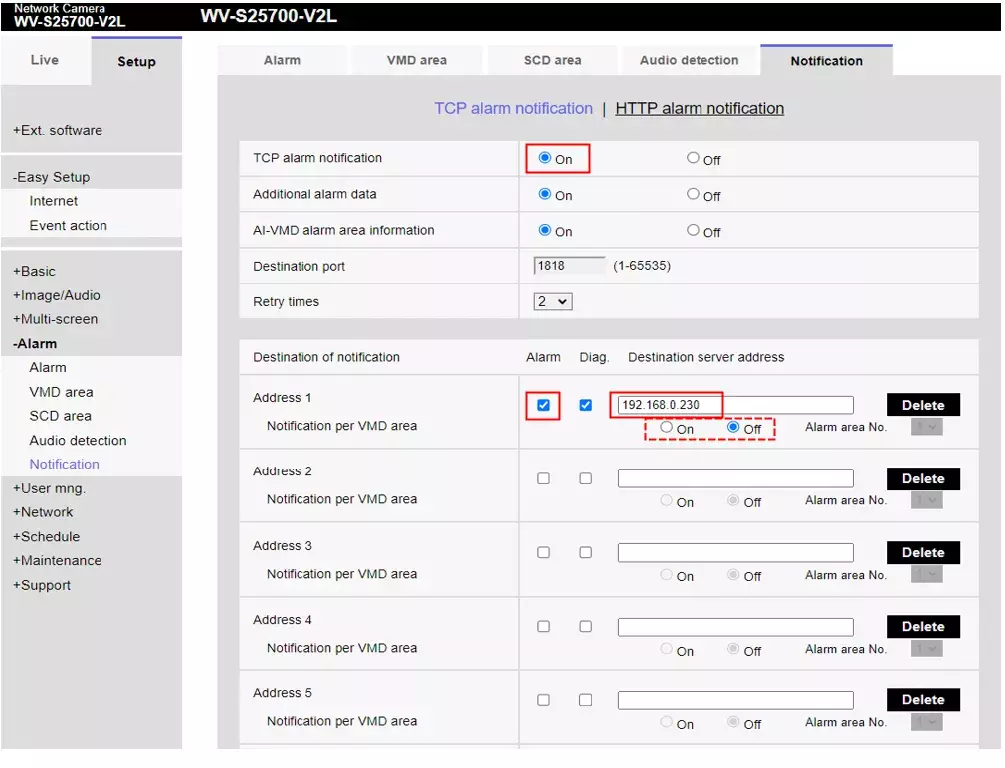
3. Set [Notification] - [TCP alarm notification] to "ON".
4. Check [Alarm] in [Destination of notification] and set [Destination server address] to the address of the PC where Genetec is installed.
*3 and 4 are automatically set from Genetec when registering the camera to Genetec.
Note: When [Transmission setting for each motion detection area] is set to "On", alarm notifications other than motion detection are not performed.
<Genetec settings>
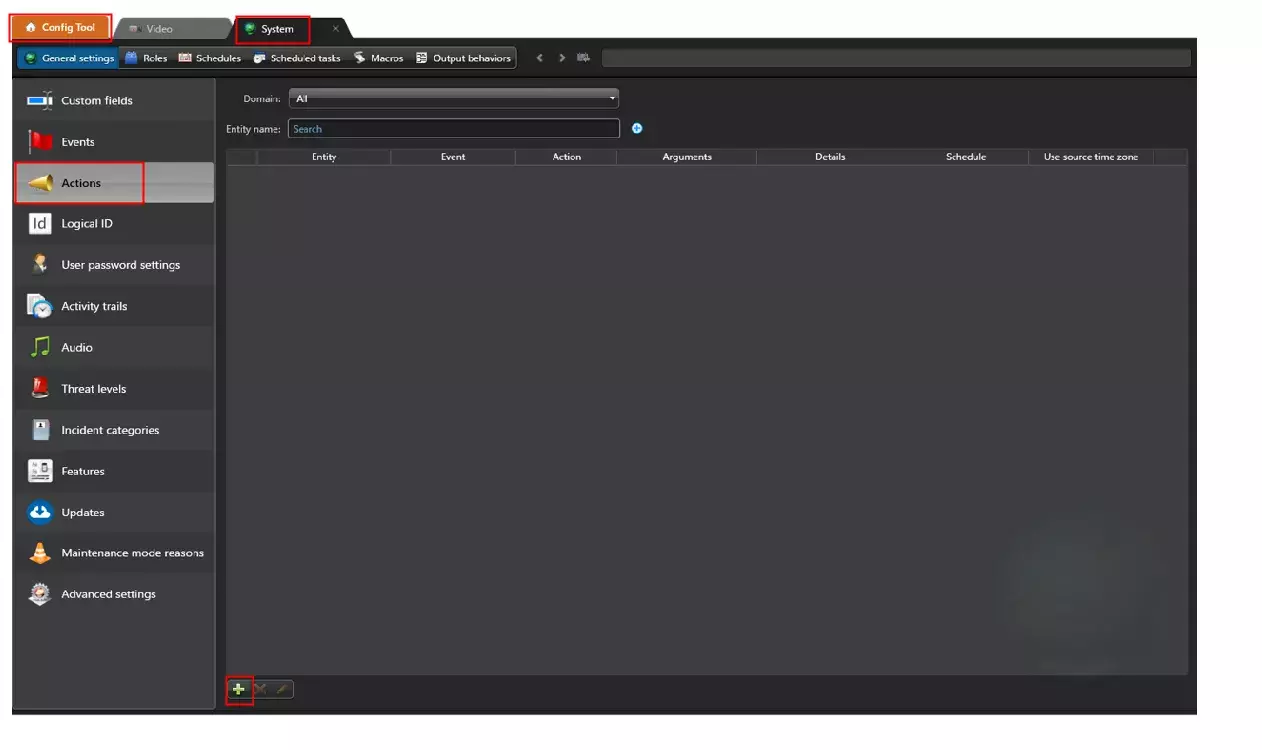
1. In case start recording with the [audio detection] notification, select [Config tool] - [System].
2. Select [General Settings] - [Action] .
3. Click [+] at the bottom of the screen.(*Add an item)
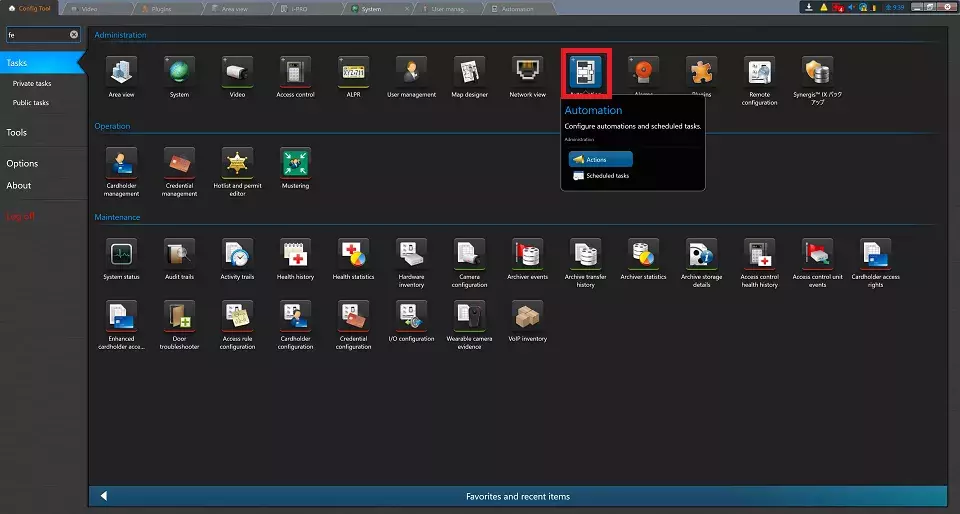
In Security Center 5.12.1.0 or later, click [Config Tool] - [Tasks] - [Automation], then click the "+" button at the bottom left to add an action.
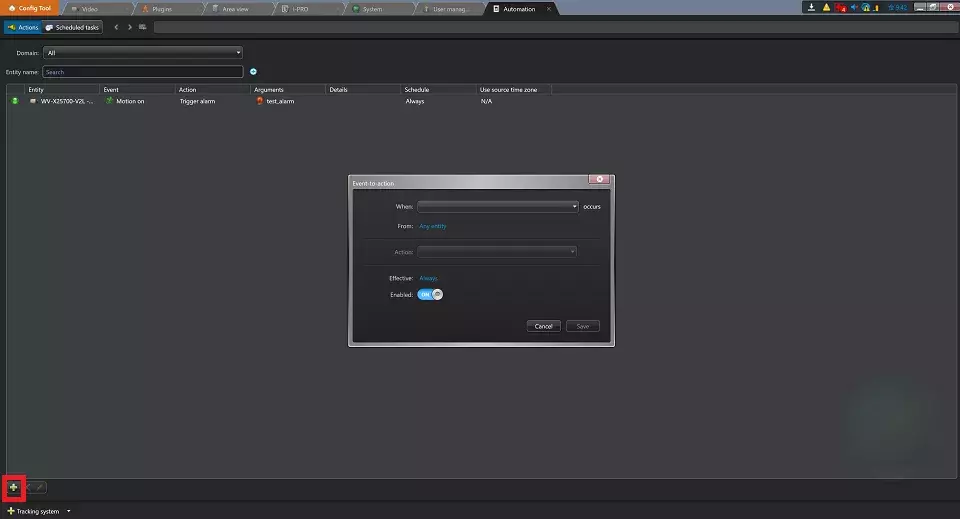
4. Click [+] to open [Event -to-action].
Set as appropriate, and finally click [Save].
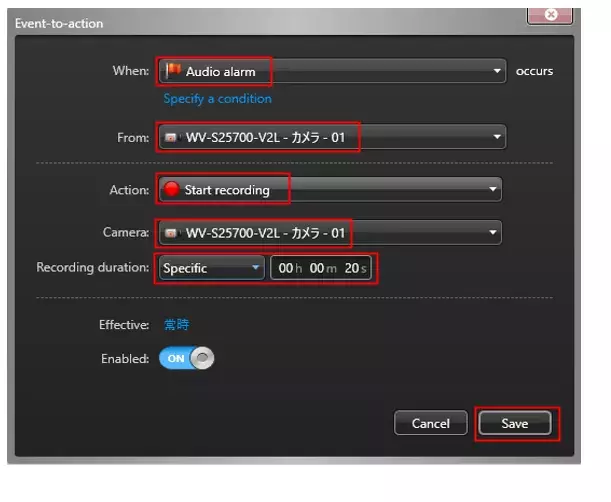
Ex.
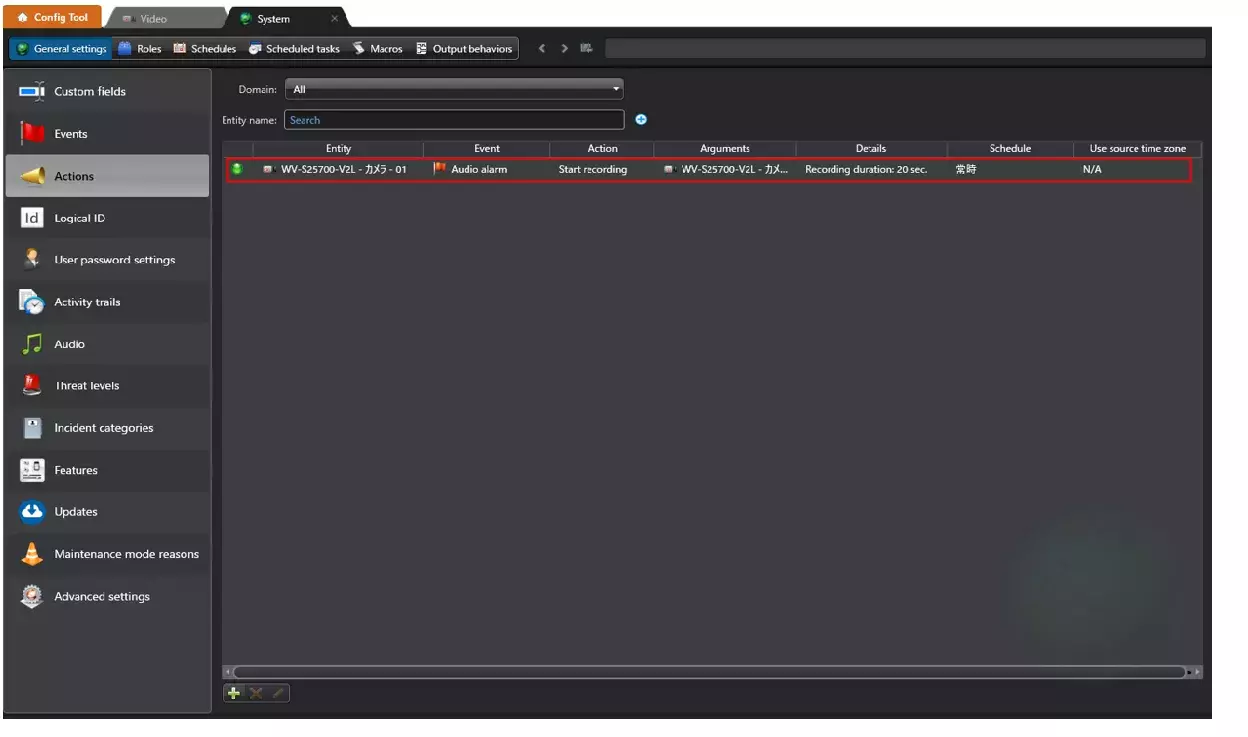
- When: If "Audio detection" occurs, select "Audio alarm".
- From: Select target camera.
- Action: To start recording, select "Start recording".
- Camera: Select camera to record.
- Recording duration: Set as appropriate.
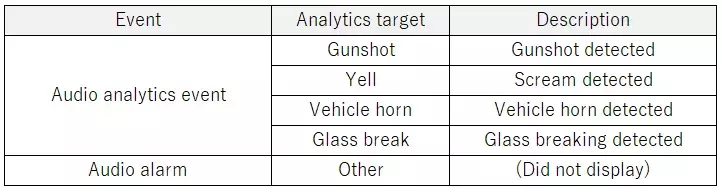
*Correspondence between "event" and "Analytics target"
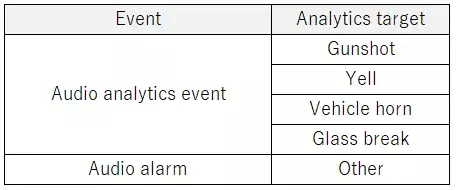
*Set [When] by referring to the table according to "Analysis target".
5. After saving, the registered contents are displayed.
<Confirmation method>
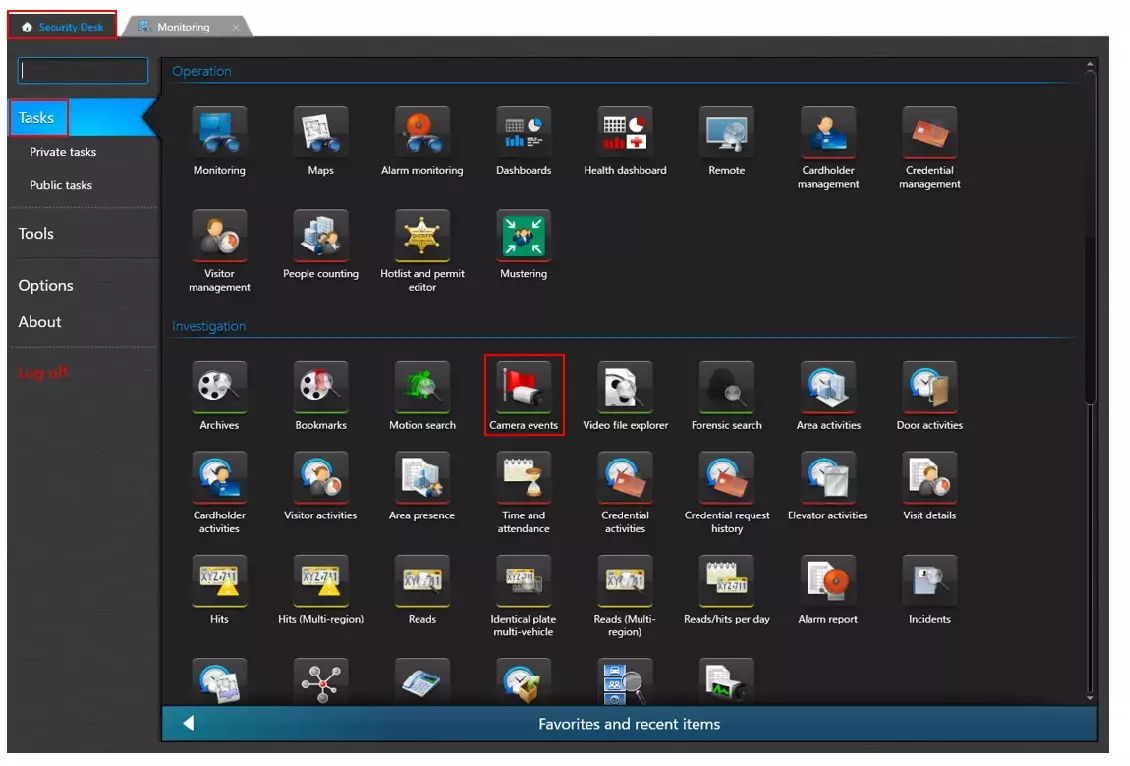
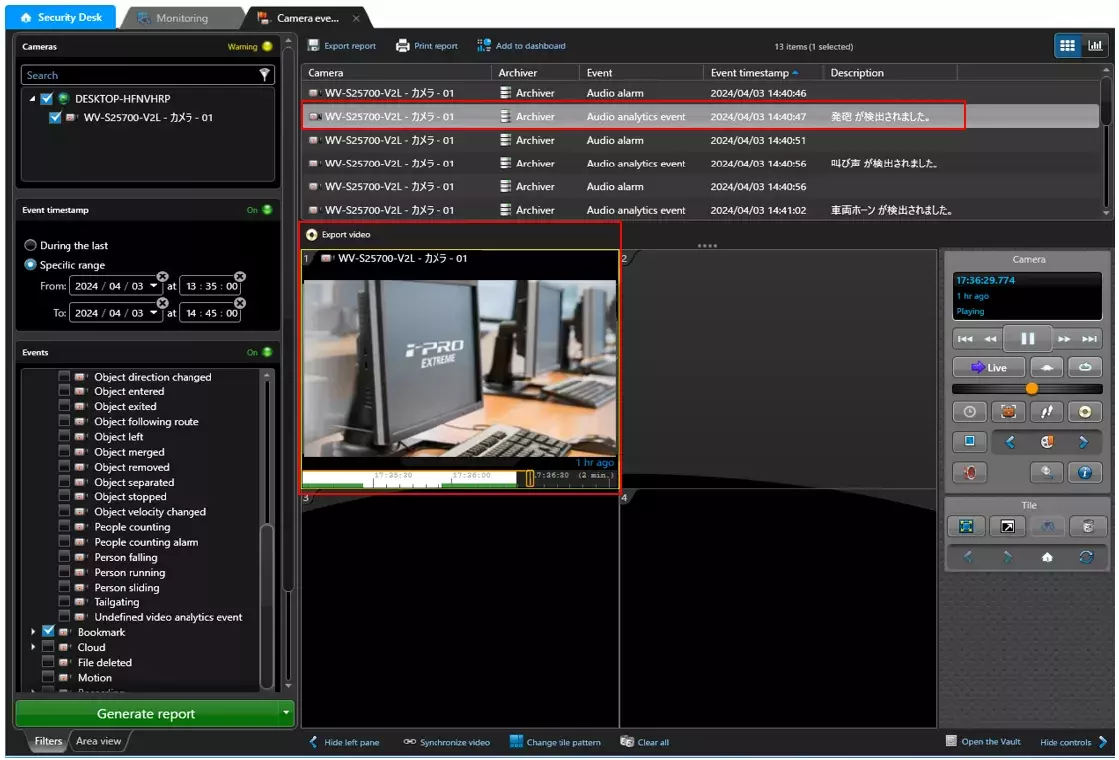
1. Select [Security Desk] - [Tasks] - [Camera events].
2. Check ”Target camera”.
3. Check ”Bookmark”.
4. Check ”Audio alarm” or "Audio analytics event".
5. Finally click [Generate report].

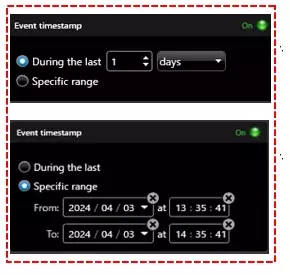
You can select the period.
You can further refine your selection.
6. When "Audio detection” occurs and the alarm is notified normally, "Audio alarm" or "Audio analytics event" is displayed in the event list.
* In case not checked the bookmark in 3, the identification target is not displayed in the details of the voice analysis event.
* The [Audio alarm] notification is received even if [Motion detection] in [Video analytics] in [Config Tool] is set to "OFF".(*The settings of 1 to 5 in ”Genetec side settings" are necessary.)

*Correspondence between "event" and "Analytics target"
7. Select what you want to check from the displayed list and double-click to play the recorded video.
Genetec Security Center 5.12 / Driver Pack 12.3