Camera Control User Defined CGI
Last update: July, 2024
Users can control cameras using user-defined CGI in i-PRO Maximizer. After configuring user-defined CGI in the Management Client, these commands can be executed on the Smart Client.Furthermore, the created command can be selected as an action when an event occurs.
Please see the following page for an overviwer of i-PRO Maximizer.
The installer and installation manual can be downloaded from [HOW TO INSTALL] on the following page.
i-PRO Maximizer (milestonesys.com)
This page contains the following sample CGI.
Active Clear Sight
AI-VMD
Wiper/Washer
See the Command Document for other CGI.
<Setup in Xprotect Management Client>
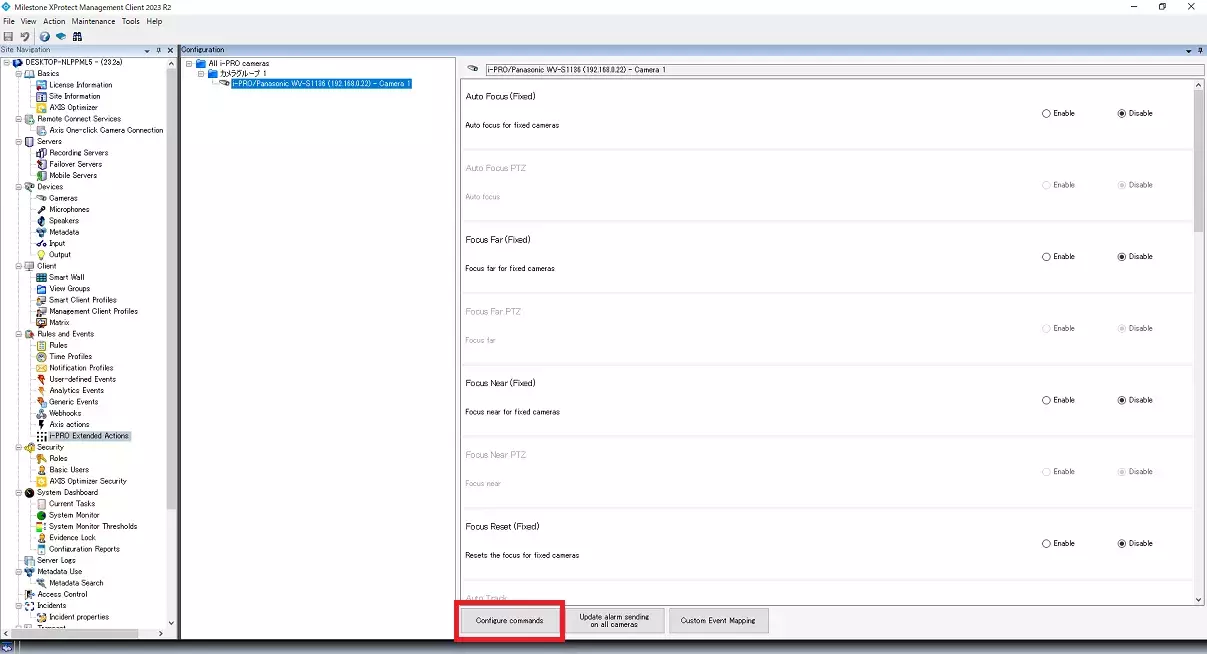
1. Select [Server] - [Rules and Events] - [i-PRO Extended Actions]. Click [Configure commands].
2. Click the [Add Command] .
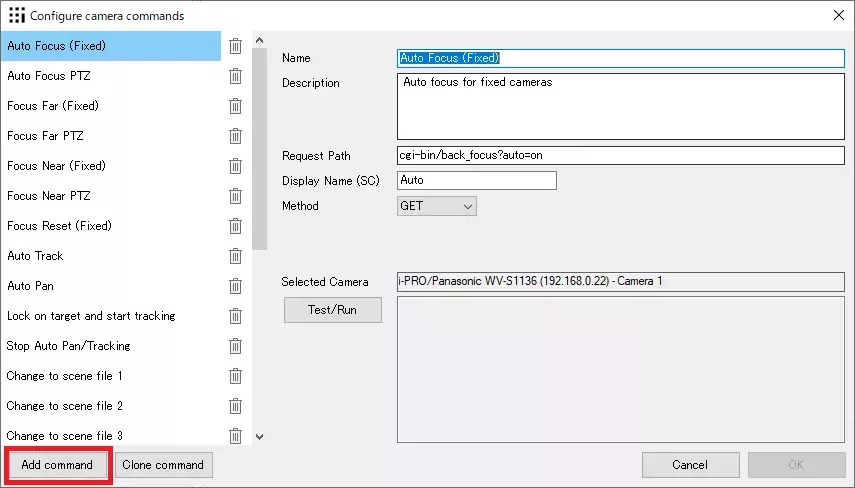
3. You can create a new command.
See <Sample CGI>for some features.
By entering commands in [Request Path] and creating it, you can achieve various operations with Milestone Smart Client. If necessary, enter the [Name] and [Display Name (SC)], and click [OK].
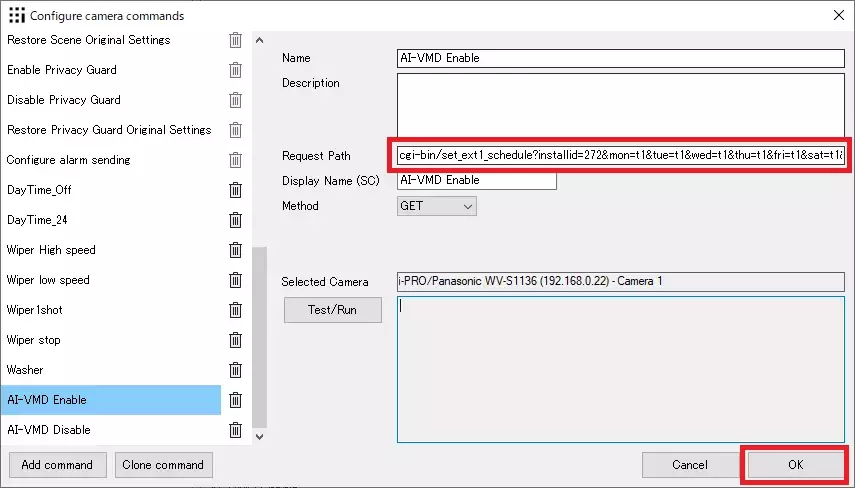
4. The created command will be added, and you'll have the option to enable/disable it.
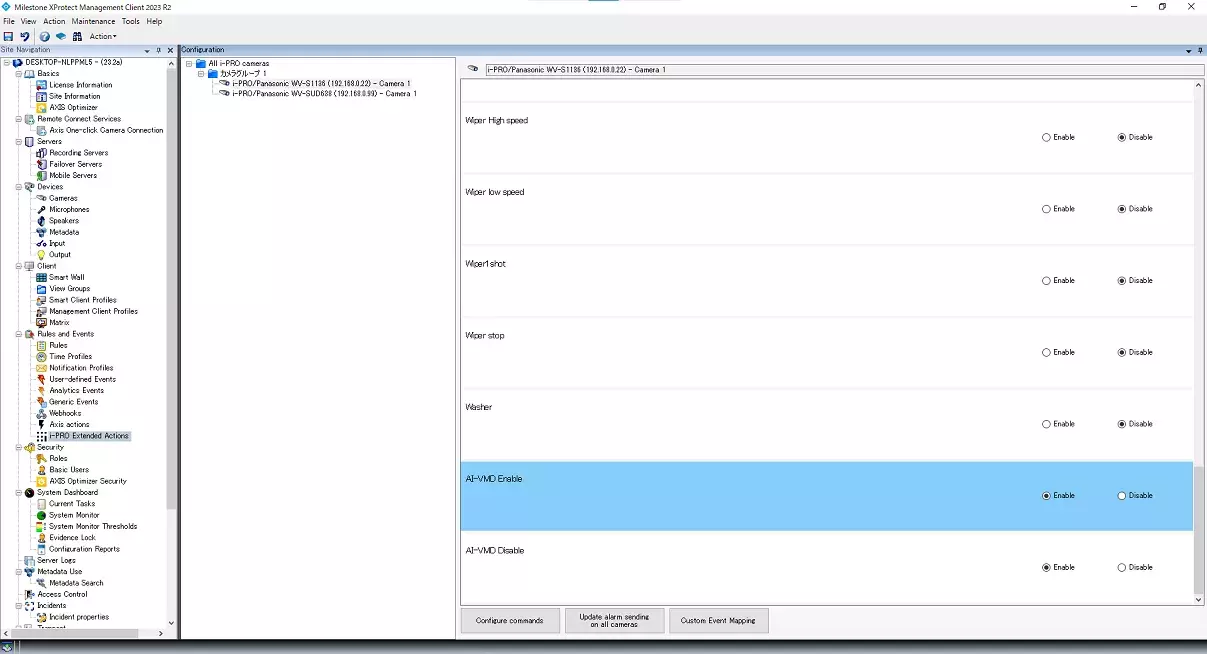
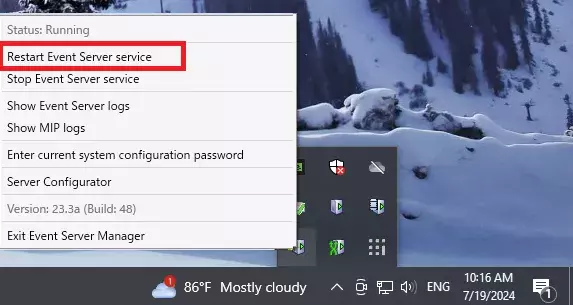
5. Restart the Milestone XProtect Event Server and restart the XProtect Management Client.
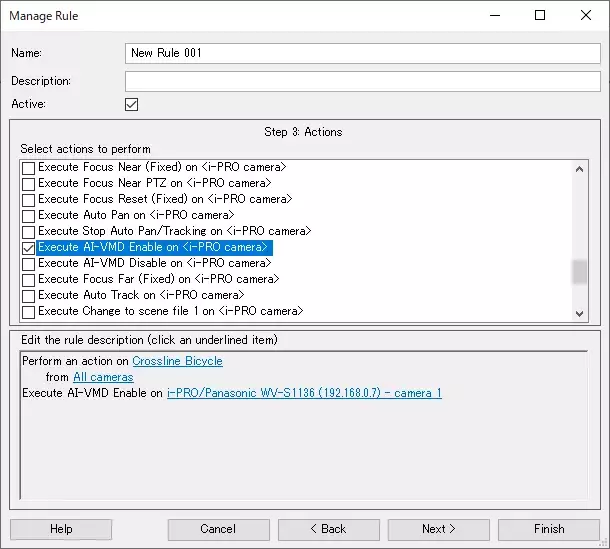
After restarting, the created command can be selected as an action when creating a rule.
<How to use Xprotect Smart Client>
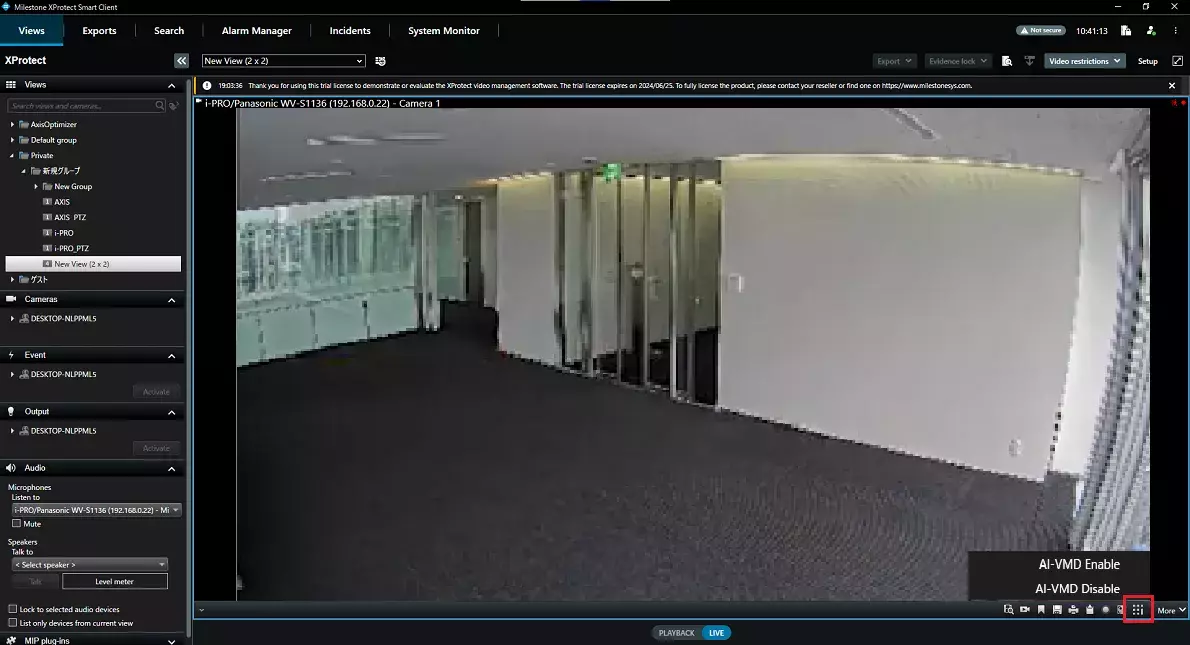
1. Start the Smart Client. Click the i-PRO icon at the bottom right of the screen. Select and execute the command you created.
<Sample CGI>
Active Clear Sight
| Function | CGI (Request Path) |
| Start | cgi-bin/activeclearsight |
AI-VMD
| Function | CGI (Request Path) |
| Enable | cgi-bin/set_ext1_schedule?installid=272&mon=t1&tue=t1&wed=t1&thu=t1&fri=t1&sat=t1&sun=t1 |
| Disable | cgi-bin/set_ext1_schedule?installid=272&mon=off&tue=off&wed=off&thu=off&fri=off&sat=off&sun=off |
Wiper/Washer
| Function | CGI (Request Path) |
| Wiper Start(High speed) | cgi-bin/camctrl?wiper=high |
| Wiper Srart(Low speed) | cgi-bin/camctrl?wiper=low |
| Wiper Srart(1 shot) | cgi-bin/camctrl?wiper=1shot |
| Wiper Stop | cgi-bin/camctrl?wiper=off |
| Washer Start *1 Washer control requires advance settings on the camera browser. |
cgi-bin/camctrl?wiper=with_washer |
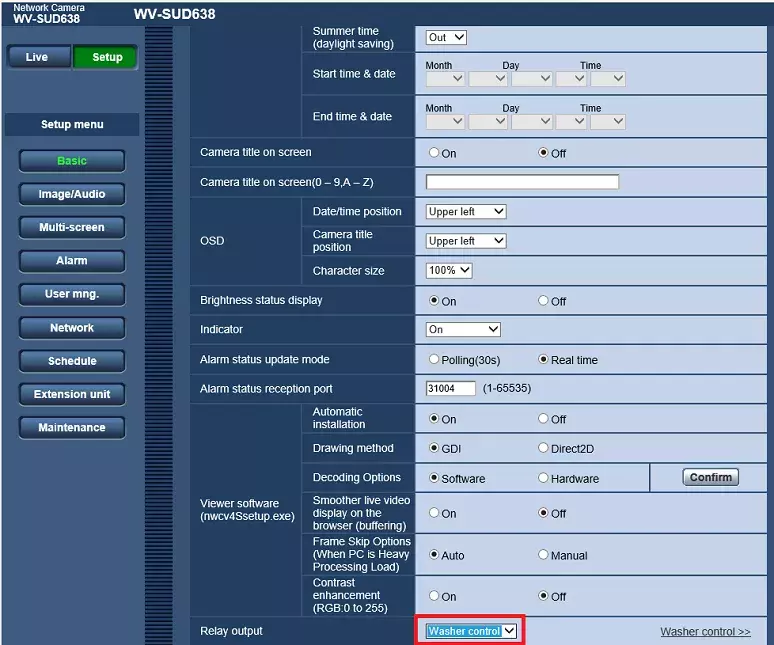
*1 Washer control requires advance settings on the camera browser.
1. Select [Setup] - [Basic].
2. Select "Washer control" in [Relay output].
In [Washer Control], detailed settings for washer control can be configured.
Please refer to the WV-SUD638 Operating Instruction for more information.
Milestone XProtect Management Client 2023 R2 /DP 13.0a
i-PRO Maximizer 1.0.1