Action to Camera Control
Last update: July, 2024
i-PRO Maximizer enables the following operation to be selected as an action when an event occurs.
- Auto Foucus(Fixed)
- Auto Foucus(PTZ)
- Foucus Far PTZ
- Foucus Near(Fixed)
- Foucus Near PTZ
- Focus Reset(Fixed)
- Auto Track
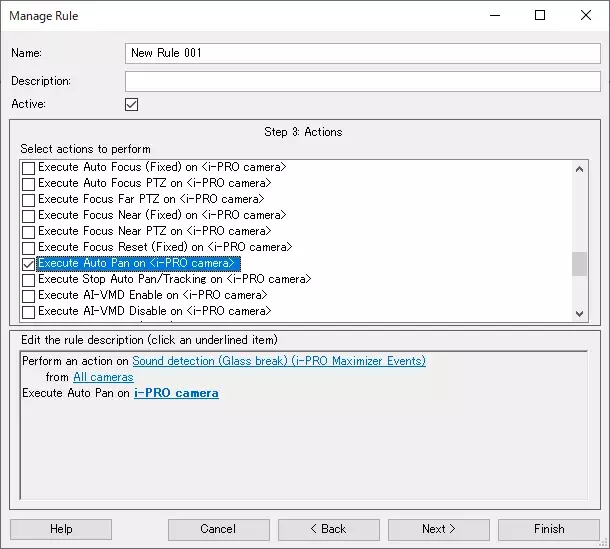
- Auto Pan
- Loock on target and start tracking
- Stop Auto Pan/Trackig
- Enable Privacy Guard
- Disable Privacy Guard
Please see the following page for an overview of i-PRO Maximizer.
The installer and installation manual can be downloaded from [HOW TO INSTALL] on the following page.
i-PRO Maximizer (milestonesys.com)
<Setup in XProtect Management Client>
The above operations can be selected as actions when creating rules.
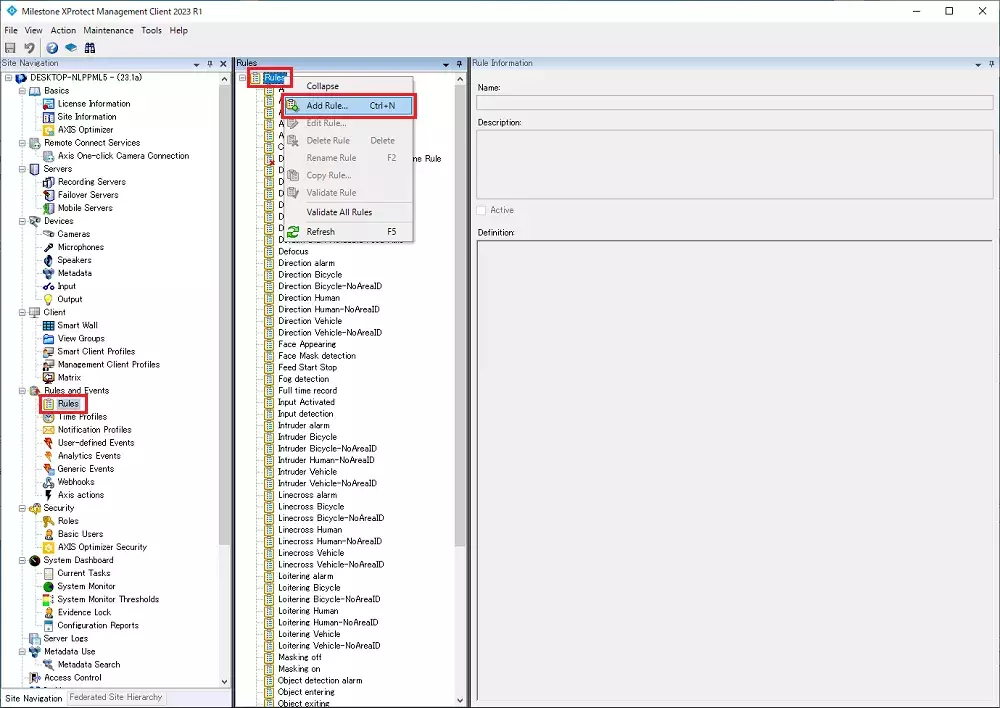
Click on [Rules and Events] - [Rules] in the [Site Navigation] area.
Then right click on [Rules] in the [Rules] area and select [Add Rule...].
After selecting the event and conditions, you can select the action automatically added by i-PRO Maximizer.
If you select any command, please see the Camera Control User Defined CGI page.
With the above settings, you can control the camera when an event occurs.
Milestone XProtect Management Client 2023 R3 /DP 13.0a
i-PRO Maximizer 1.0.1