How do I setup a NAS drive File Path in VI Monitor Plus?
- Video Insight VMS
- Installation/Configuration
Problem Description:
You have a NAS drive setup and want to store video recordings from the IP Server. The file path is added to VI and the cameras but it's not saving recordings within the NAS Drive. You keep getting VI error messages when it cannot write or if there’s no permission.
You need to add your Windows Administrator account that has the same username and password as your NAS Drive to the IP Server Enterprise services.
・Open Services.msc
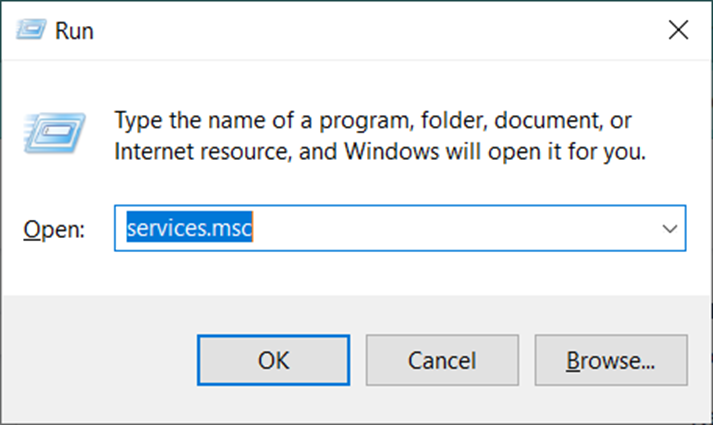
・Find IP Server Enterprise service

・Right click and select Properties

・Select the “Logon” tab

・Enter the Windows User Admin account credential that has the same username and password as the NAS drive
・Save the setting. If the account is accepted, privileges will be granted for that account.
・Restart IP Server.
・Log into VI Monitor Plus and make sure the NAS file path is correct.
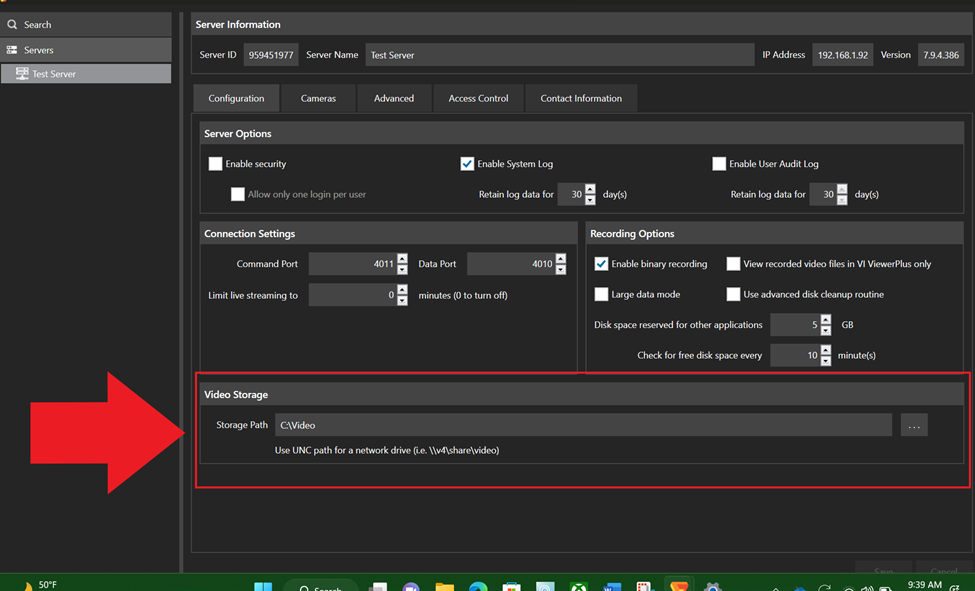
・Check the camera’s last recorded date and it will update once the server starts recording

Article number:eu-en124156
Last updated:October 16, 2025
Was this article helpful?