How to connect a Wi-Fi USB adapter - Group#4
Applicable models
WV-RD5500-C / WV-RD5500-CS / WV-RD5500-CE / WV-RD5500-CSE
Overview
- Preparation
- Notes on tablet and smartphone use
- Configuration procedure
- Tested Wi-Fi USB adapter
- Tested tablet terminals and smartphones
1. Preparation
- Wi-Fi USB adapter - Locally procured (Click here for the list of tested models)
- Tablet terminal or smartphone - Locally procured (Click here for the list of tested models)
- Applicable i-PRO Security Radar
2. Notes on tablet and smartphone use
2-1. Web browser
- Recommended browser - Google Chrome. *Download available at [Apple store] or [Google play].
- Tip when installing multiple radars - Bookmark the radar IP address http://192.168.12.10 on the browser before accessing the radar.
2-2. Wi-Fi connection
- Place the tablet or smartphone within 10 meters from the radar.
- A Wi-Fi connection can be affected by the weather and installation condition. Check the signal strength with Wi-Fi icon on your tablet or smartphone before accessing the radar.

3. Configuration procedure
For the details on radar installation procedure, refer to Installation Guide*.
*Download available at Documentation Database.
*When a QR code for Installation guide is on the carton box, you can access Installation Guide by scanning it.
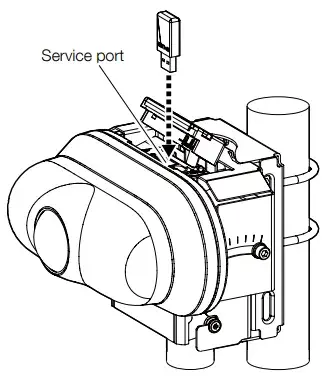
3-1. Install the radar and turn on the power. Then, attach a Wi-Fi USB adapter to the radar body.
Security Radar
3-2. Enable Wi-Fi connection on the tablet or smartphone, and enter the following SSID and Password to connect with the Wi-Fi USB adapter.
- SSID: "product number_serial number" (e.g. WV-RD5500-C_VAxxxxxx)
- Password: "cam _serial number" (e.g. cam_VAxxxxxx)
3-3. Open a Google Chrome browser on the tablet or smartphone, and access http://192.168.12.10 on the browser.
- Try http://10.0.0.10 when the above access fails.
3-4. Confirm that the initial setting screen is displayed on the browser as follows.

4. Tested Wi-Fi USB adapter
| Manufacture name | Model number | Remarks |
|---|---|---|
| BUFFALO | WI-U2-433DMS | Discontinued |
| TP-Link Technologies Co., Ltd | TL-WN823N V2 | |
| TP-Link Technologies Co., Ltd | Archer T3U | |
| Netgear | AC600 |
The guaranteed operating temperature range of Wi-Fi USB adapter:
The guaranteed temperature range of Wi-Fi USB adapter is 0˚C to 40˚C (32˚F to 104˚F). If you use Wi-Fi USB adapter outside this guaranteed range, Wi-Fi connection may fail or the camera image may not be displayed wirelessly. In this case, use a LAN cable to access the radar as is the case in normal operation.
5. Tested tablets and smartphones
We verified the wireless connection between the following tablets / smartphones and applicable i-PRO cameras under our test environment. Note that performance may differ depending on your PC or OS environment. (As of September, 2021)
| Manufacture name | Product name | Model number | OS version |
|---|---|---|---|
| Apple | iPhone 12 Pro Max | MGCV3J/A | iOS14.6 |
| Apple | iPhone 12 Mini | MGA63J/A | iOS 14.2 |
| Apple | iPhone 12 Pro | MGM63J/A | iOS 14.4 |
| Apple | iPhone 12 | MGHT3J/A | iOS 14.5.1 |
| Apple | iPhone SE (2nd Generation) | MX9U2J/A | iOS 14.6 |
| Apple | iPhone 11 Pro | MWC62J/A | iOS 14.6 |
| Apple | iPhone XS | MTAY2J/A | iOS12.2 |
| LG | V40 ThinQ | LM-V405EBW | Android 8 |
| SAMSUNG | Galaxy Note 9 | SCV40 | Android 10 |
| Xiaomi(小米) | Redmi Note 9S | M2003J6A1R | Android 11 RKQ1.200826.002 |
| Apple | iPad Air (4th Generation) | MYFP2J/A | iOS 14.6 |
| Apple | iPad Pro 12.9 (4th Generation) | MXAT2J/A | iOS 14.6 |
| Apple | iPad Pro 11 (2nd Generation) | MY232J/A | iOS 14.6 |
| Apple | iPad (7th Generation) | MW752J/A | iOS 14.6 |
| Apple | iPad Pro 12.9 (3rd Generation) | MTHJ2J/A | iOS 12.1 |
| Apple | iPad Pro 12.9 (4th Generation) | MXAT2J/A | iOS 14.6 |
| HTC | Nexus 9 | Nexus 9 | Android 7.1.1 |
6. Troubleshooting
6-1. Unstable image display
Try the following countermeasures:
- Check the signal strength and move the tablet or smartphone closer to the radar
- Close and restart the browser
- Clear the cache on the browser
- Turn off and restart the Wi-Fi connection
6-2. Wi-Fi connection failure
Try the following countermeasures:
- Try another tablet or smartphone
- Remove the Wi-Fi USB adapter from the radar body and connect it again after a while
- Try another Wi-Fi USB adapter
If the above countermeasures do not work, your radar is not recognizing the Wi-Fi USB adapter.
-> Check the followings:
- Confirm if the Wi-Fi USB adapter is a tested model
- Update radar firmware to the latest version*
*Firmware download available at WV-RD5500-C etc. Firmware | i-PRO Products.