How can I create a retention plan for my cameras on VI?
- Video Insight VMS
- Installation/Configuration
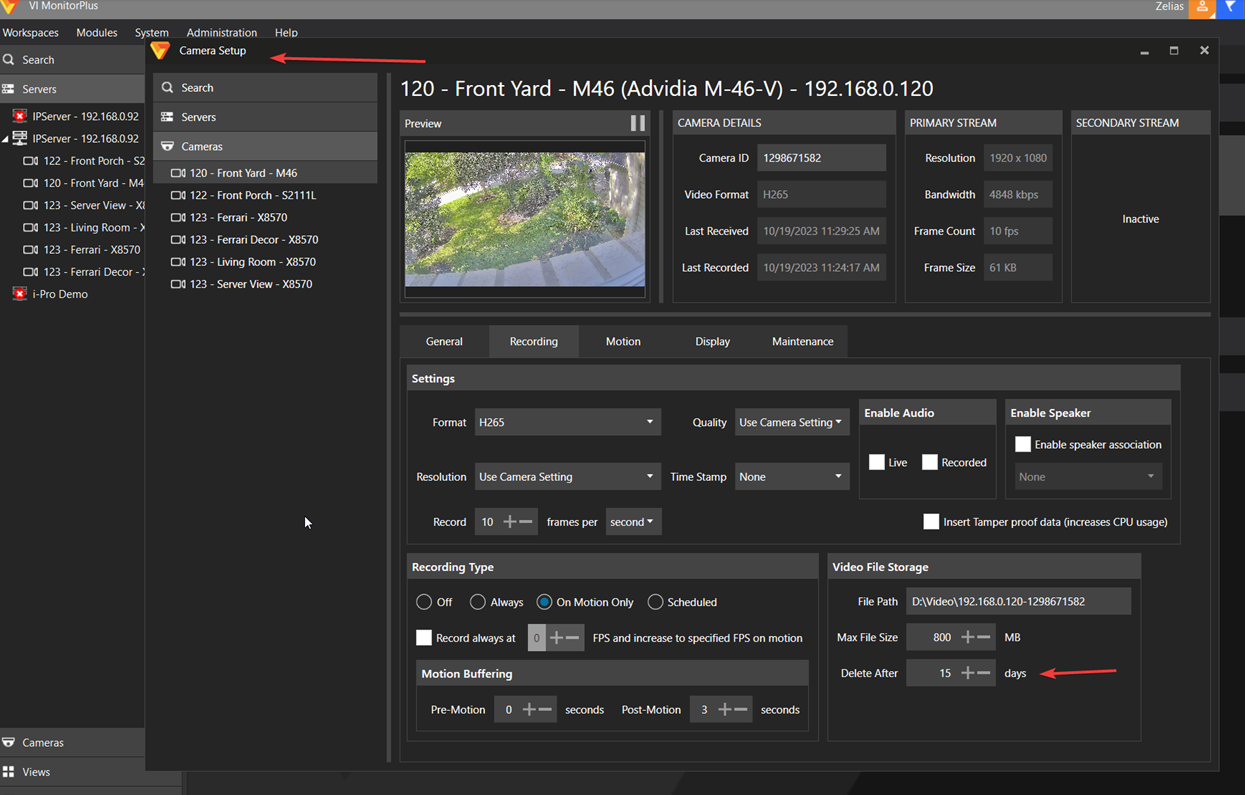
One way to specify your retention period is to configure the [Delete After] section for each camera.
[VI Monitor Plus] → [Administration] → [Cameras] → [Configure Properties] → Select a camera → [Recording tab] → [Video File Storage] → Set Delete After parameter
Configure [Delete After] for a Single Camera
- You can also right click your camera from the device tree
- Select Properties
- Go to the Recording tab
- Set the parameter under the Delete After section
Configure [Delete After] for Multiple Cameras
- Access the menu [Administration] → [Cameras] → [Configure Multiple Camera Properties]
NOTE: If you do not have this option, consider updating VI to a newer software version - Select all cameras to apply the change to
- Enter a value for [Delete After]
- Click Save
- Confirm the column for [Delete After] is updated

Article number:apac-en123346
Last updated:October 20, 2025
Was this article helpful?
Thank you for your feedback!