How to Setup AI-Processing Relay app in Camera and Active Guard Dashboard
- Analytics
- Installation/Configuration
Follow these steps to set up
Description: This guide provides step-by-step instructions for installing the AI-Processing Relay app on an I-PRO AI-Camera and configuring the camera within the Active Guard Web-Config Tool.
1.Install the AI-Processing Relay app into the AI-Camera.
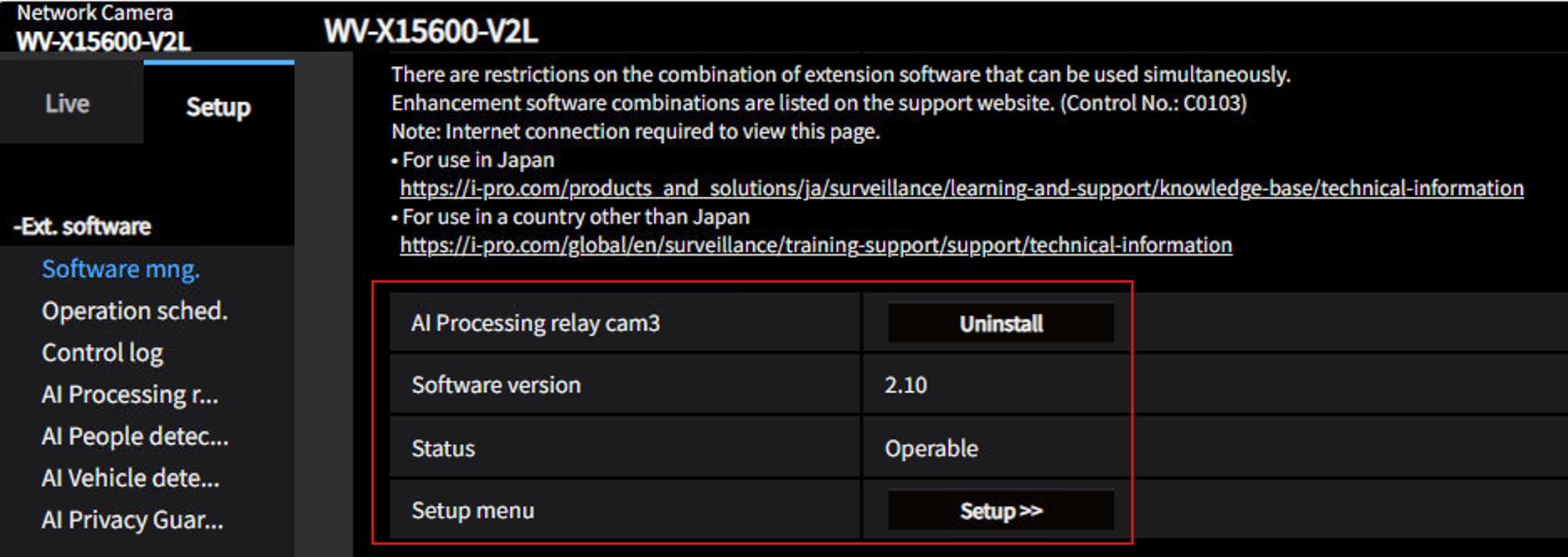
In the image above, the AI-Processing Relay app has been designated as cam3.
2.Install the AI-Processing Relay people, face, vehicle app onto the AI-Camera.

In the image above, AI-People Detection has been implemented on cam3.
3.Setup the AI-Relay app from the AI-Camera and connect the non-ai camera.
a. Add the non-ai camera credentials and URL to complete the setup.
b. If you're uncertain about the "HTTP JPEG Stream URL," please refer to the AI-Processing Relay app manual.
You can locate your camera's URL by matching it with the camera's Make.
c. Document Link (go to Chapter: 4.1.5 Non-AI cameras - page 36, 37, 38):
AI Processing Relay for AI X-series camera - Web Guide HTML

In the image above, this shows a non-AI camera is being setup in the Relay app
4.Ensure that your AI-Camera, along with the AI-Relay app, is successfully integrated into the VMS after configuring the extension application on the camera.
5.Open the Active Guard Web-Config tool on the browser.
6.Add the AI-camera from "Add Devices > Camera(s) From VMS" option.

7.Once the AI-Camera is added, click on "Add Devices" again and click on "AI Processing Relay".
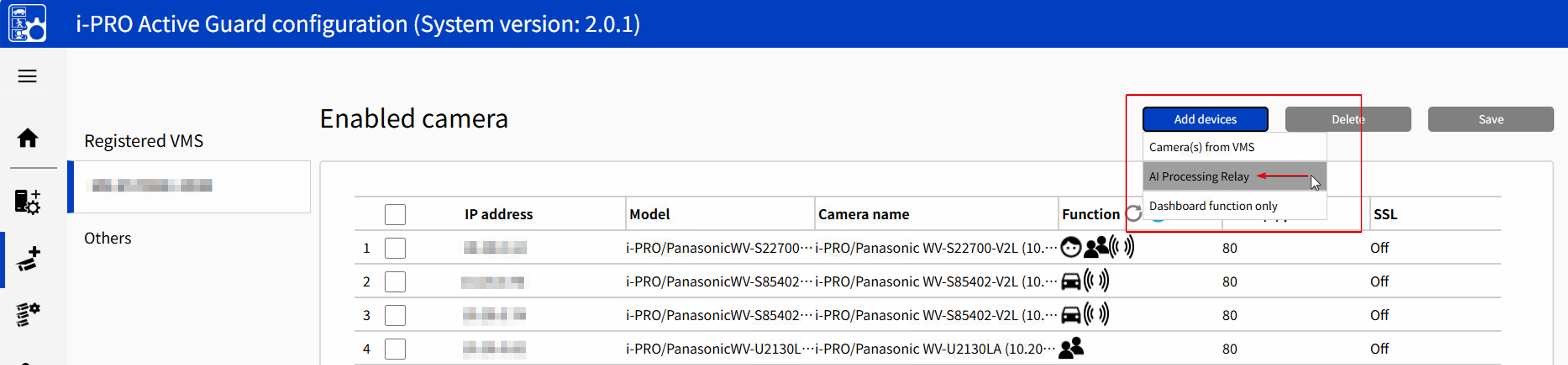
8.Add the IP address, username and password of the AI-Camera.
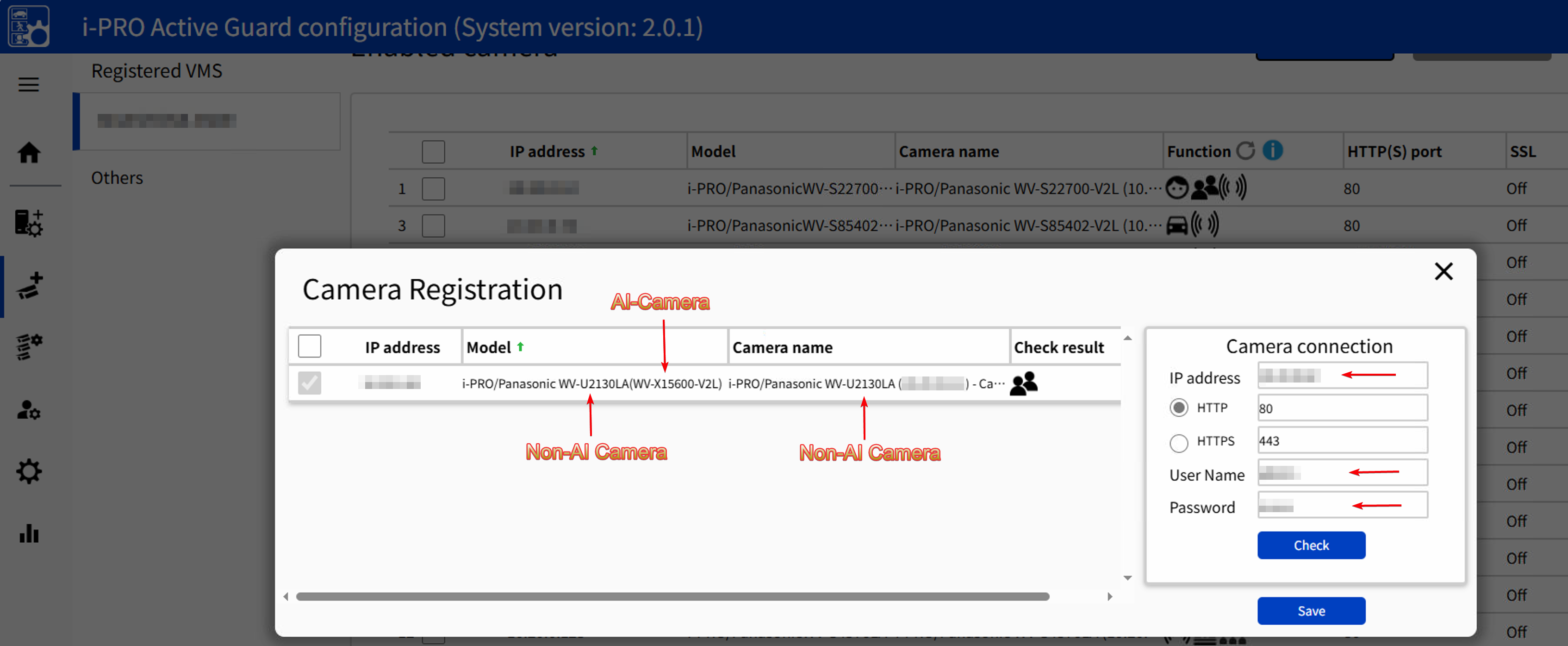
This will add the AI-Camera which has the AI-Relay app picking from a non-AI camera.
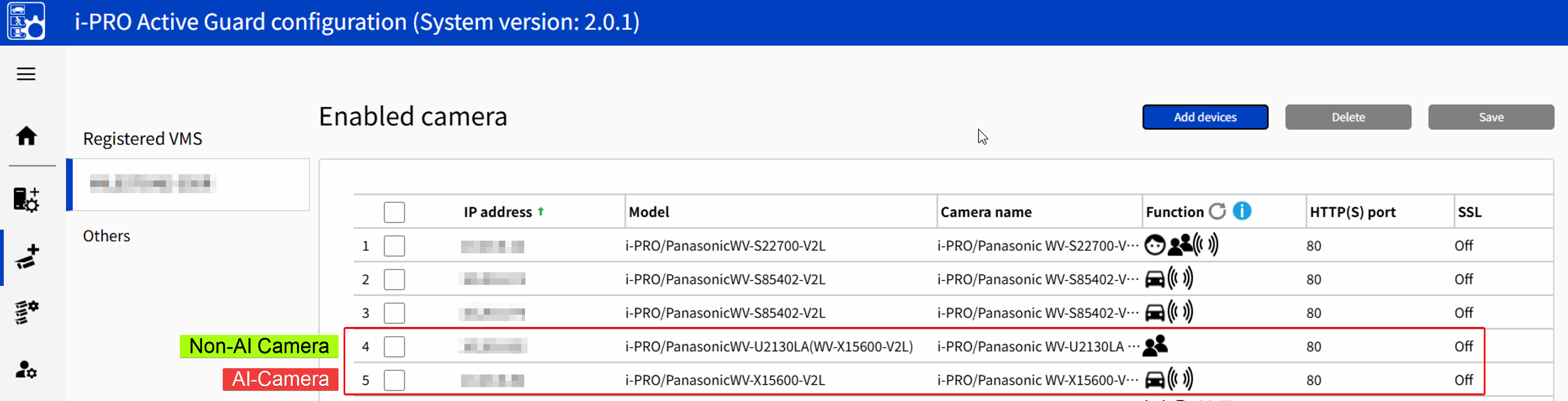
After incorporating the non-AI camera, the updated list should appear as follows:
Camera with AI-Processing Relay app setup is complete!
Note:
- If you encounter an issue where cameras are not detected while trying to add devices, please restart and refresh the Insight API service and cache. Additionally, reload the AG web-config tool in your browser and attempt the process again. If you have questions, please contact our Technical Support for assistance.
- Please make sure the AI-Camera and the Non-AI Camera are on the same IP Subnet.
Article number:us-fr124611
Last updated:October 21, 2025
Was this article helpful?