Active Guard Server shows camera “Connection Error” in Web interface
- Analytics
- Troubleshooting
Problem Description
After adding the VMS server and cameras into the Active Guard Server, the web page of Active Guard displaying cameras on the list but has red Xs on them with “Connection Error” message when hovering on the red X icons.
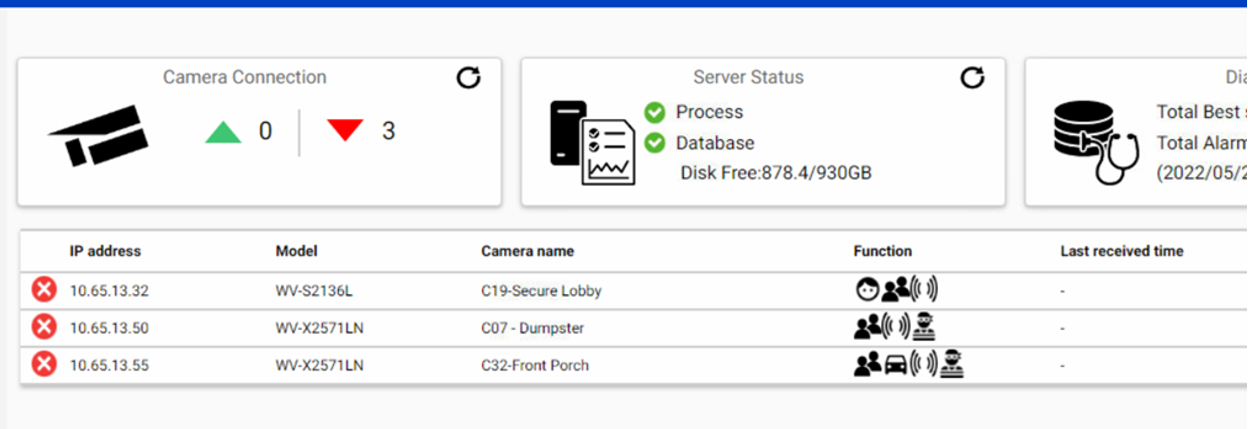
Problem Cause:
This happens when PS-API Service is not starting correctly. It’s trying to install Windows Media Player but failing to do so, causing Active Guard Server to not work properly. This is commonly seen on Windows Server 2012 R2s as Windows Media Players are not installed by Default.
Installing Desktop Experience from the Server Manager will fix this issue.
Step 1.
Open Server Manager
Manager > Add Roles and Features
Follow the prompts and move to the Features Section.
Step 2.
Scroll down to features called “User Interfaces and Infrastructure (x of x installed)
Step 3.
Select Desktop Experience.
Step 4.
Then Hit install.
Step 5.
Restart Active Guard service from the Active Guard web browser page and connection to the camera should be showing fine.

Video Reference for Installing the Roles and Features:
How to enable Windows Media Player and Snipping Tool on Server 2012 R2(YouTube)
Article number:us-fr124861
Last updated:June 23, 2025
Was this article helpful?