How do I integrate MonitorCast with VI Monitor Plus?
- Video Insight VMS
- Installation/Configuration
MonitorCast can be integrated into VI Monitor Plus through the menu [Administration] → [Servers] → [Server Setup] → [Access Control]
1. Open VI Monitor and navigate to [Administration] → [Servers] → [Server Setup]. This will open the server setup window.

2. In the Server Setup window select the correct server from the server tree.
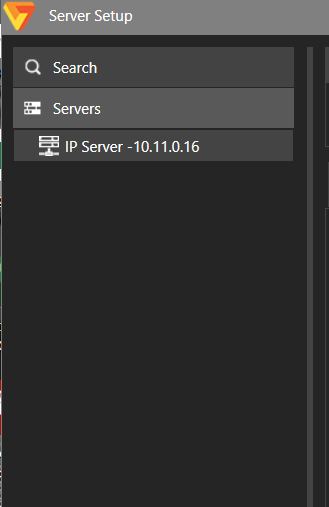
2. After selecting the server navigate to the Access Control tab.

3. Check the "Enable Access Control Support" box. After checking the box the system configuration and doors/device menus
will appear in the same window.

4. Start in the System Configuration Menu.
5. In the Integration type drop down select Monitor Cast V4.
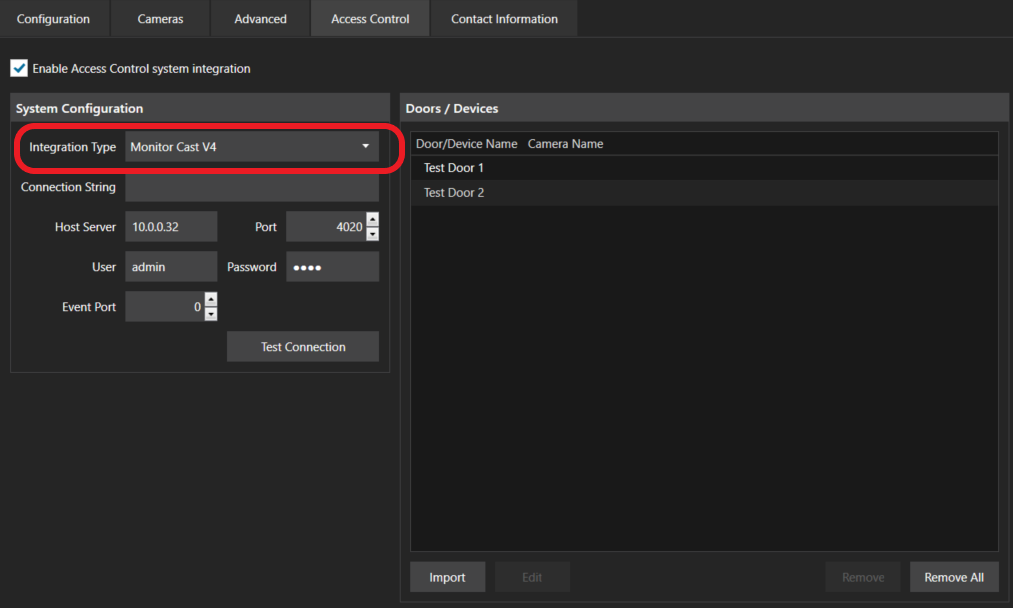
6. In the Connections String area leave blank.

7. In the Host Server area enter the IP Address for the monitor cast server.

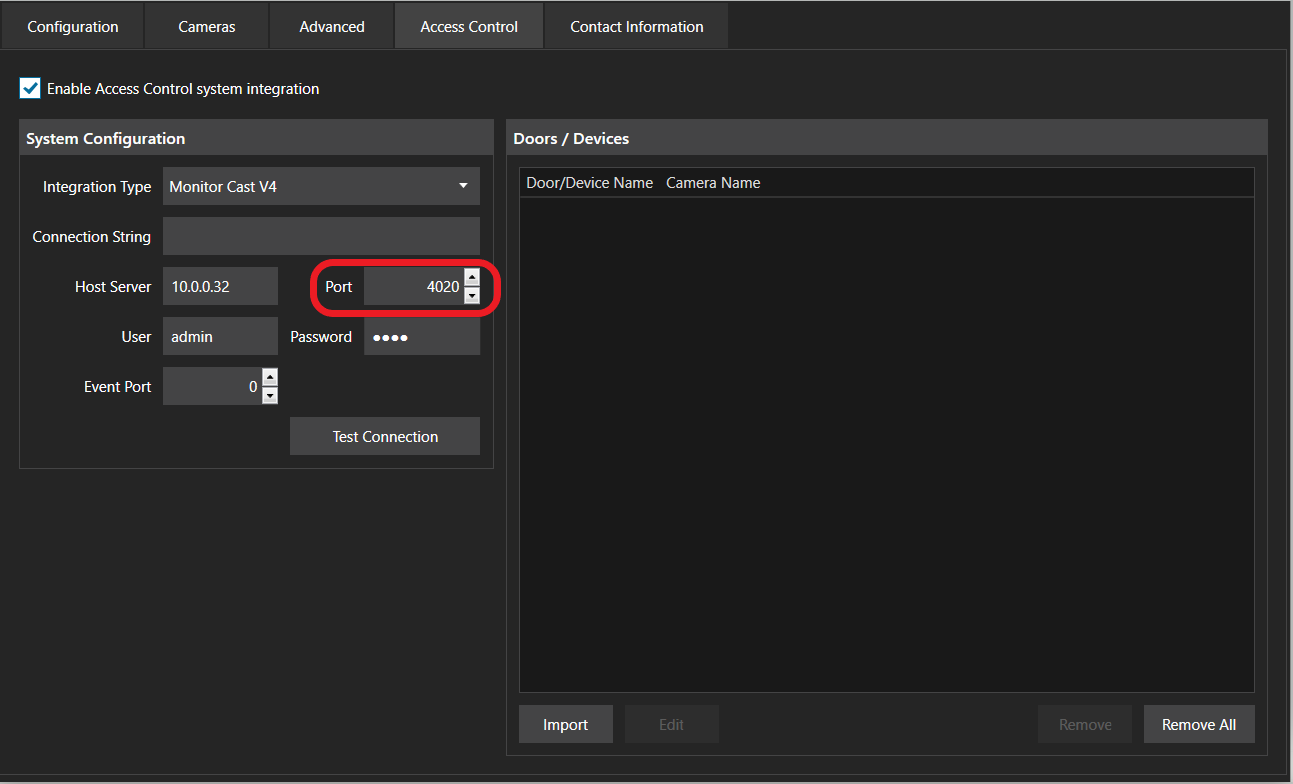
8. In the Port area enter the port number from the monitor cast server. *Default Port: 4020
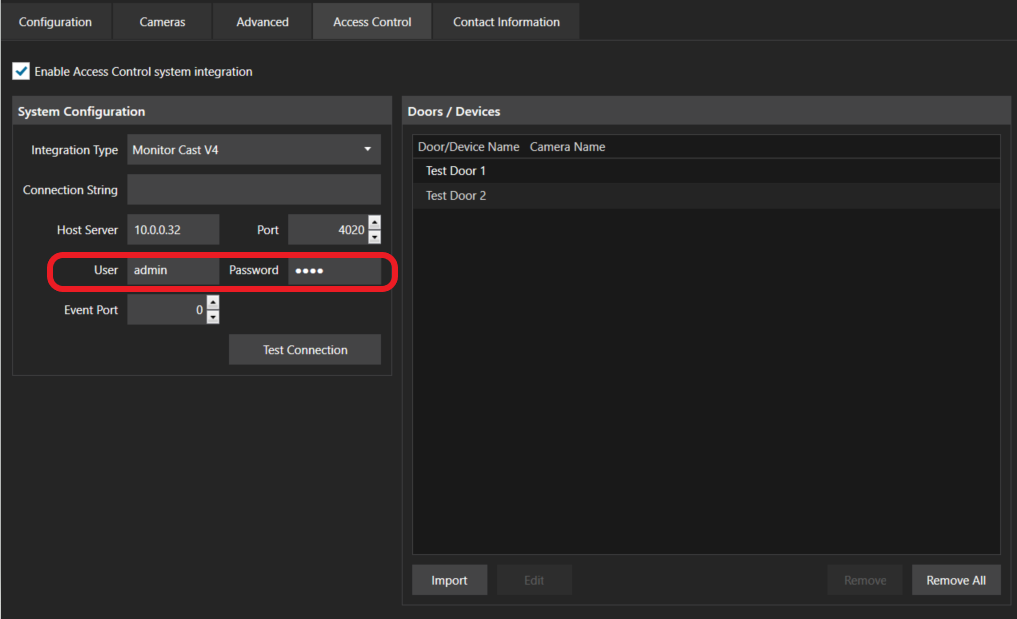
9. In the Username and password enter the an Administrator login for the monitor cast account.
*Default Username: admin / Default Password: 1234
10. In the Event Port area leave blank.
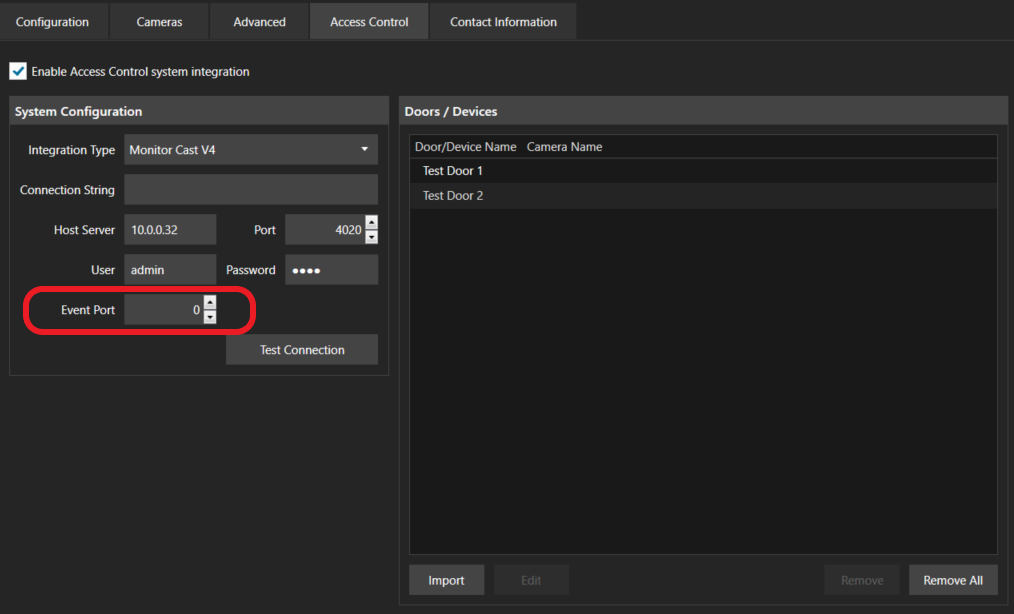
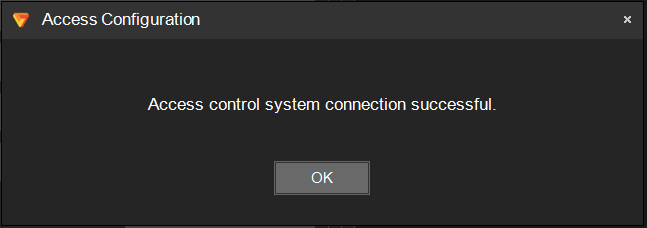
11. After entering the information stated above press test connect. You will receive a pop up stating, “Access control system connection Successful” if everything is correct.
12. Next we will go to the Doors/ Devices menu.

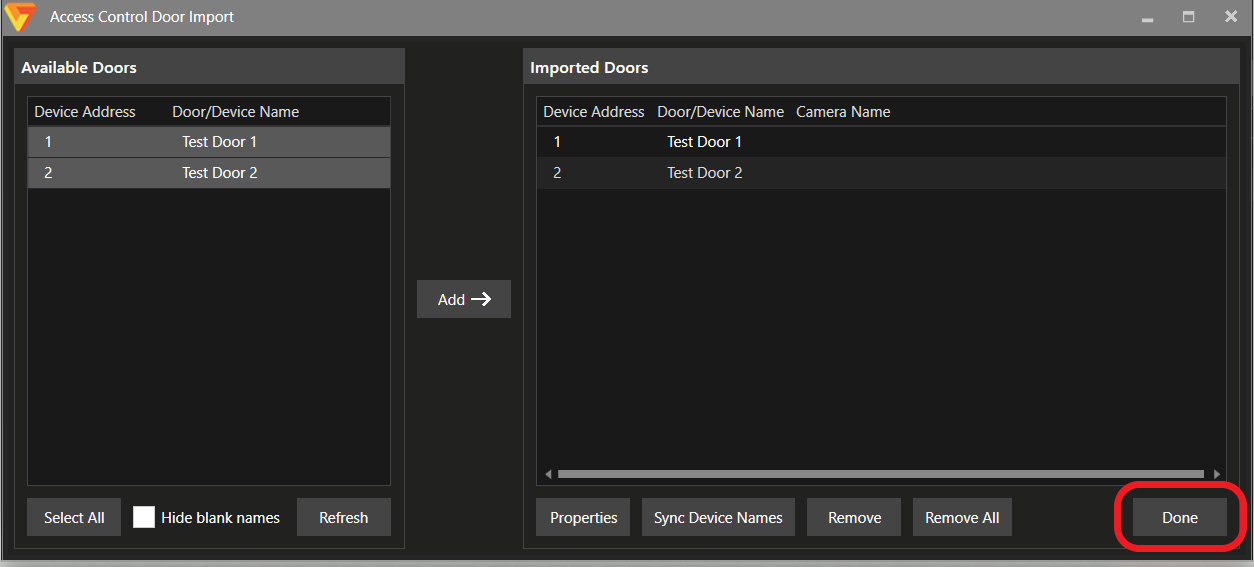
13. Click the Import button. This will open a Access Control Door Import menu.
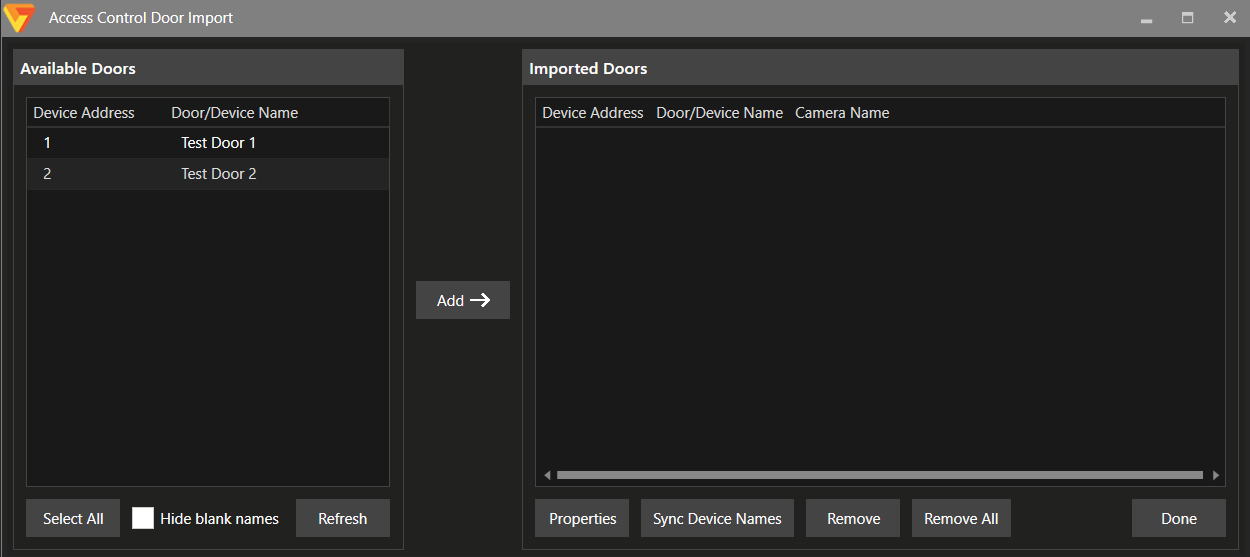
14. Under available doors select the doors that the customer would like to import and click add. The selected doors will be moved to the imported door area.
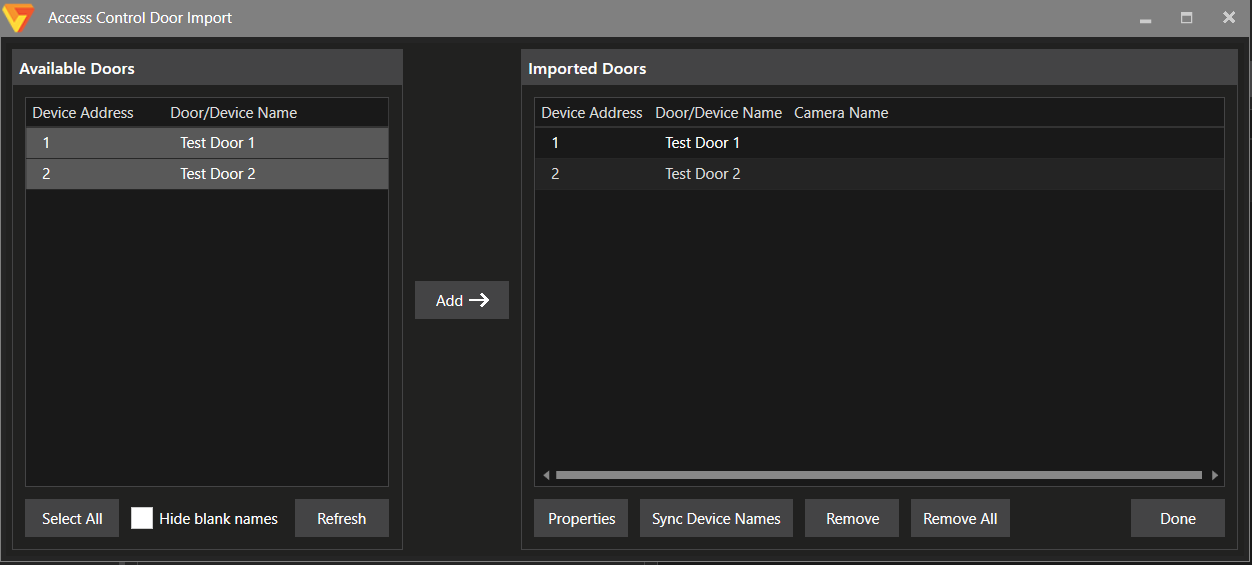
15. Under the Imported doors you can change the properties, Sync Device Names, and Remove doors.
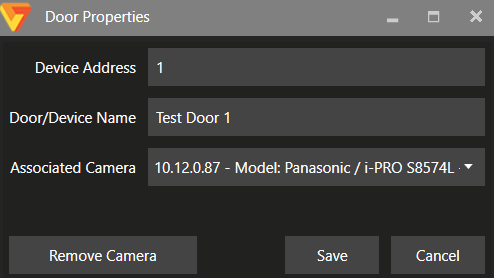
16. To associate a camera select the camera and click the properties button. This will open the Door Properties windows. The Device address and name can also be changed in this window.
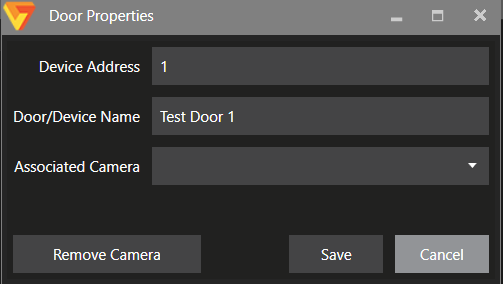
17. Use the associated Camera drop down option select the camera and click save.
18. Now the readers and settings from Monitor Cast are ready to integrated. Click the done button.
Article number:us-fr124401
Last updated:October 16, 2025
Was this article helpful?