How do I turn off the camera time and data on WV-ASM300?
- Management Software(ASM)
- Installation/Configuration
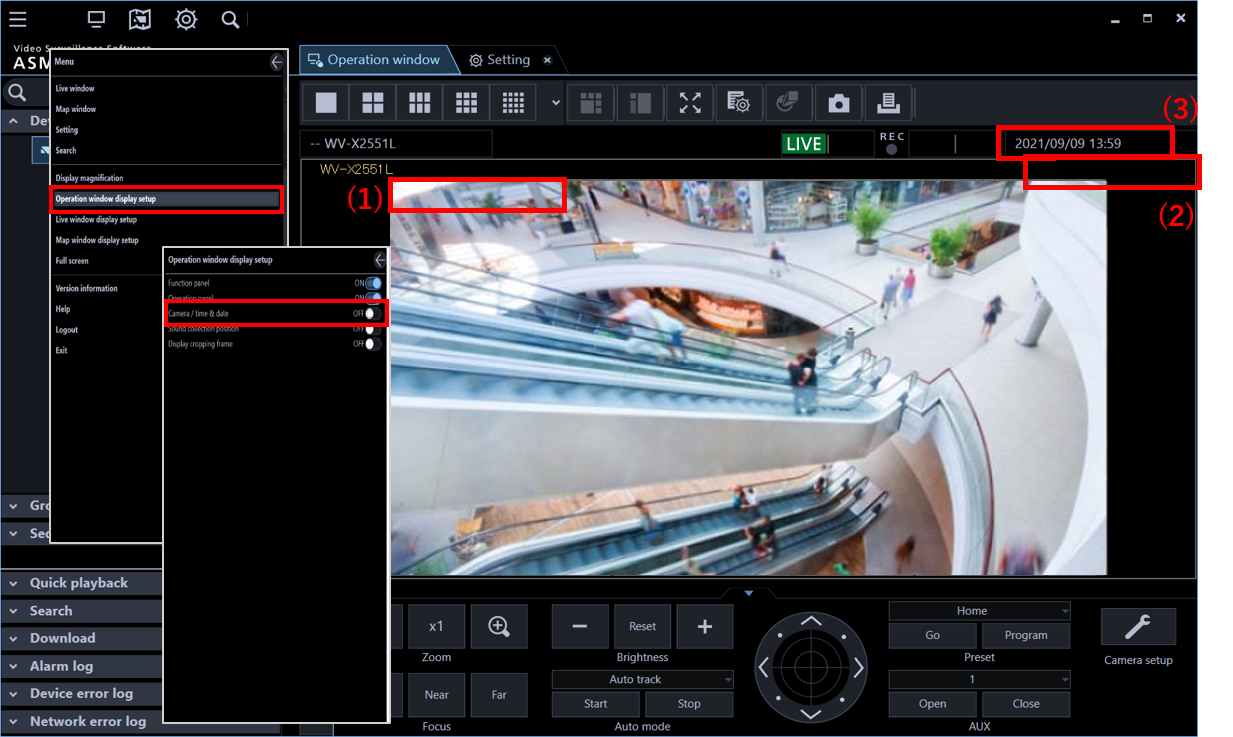
There are three locations to be displayed the time and data in Operation Window of WV-ASM300. How to turn off is different depending on the location.
These locations are shown in the picture by clicking “WV-ASM300_date_time.png” as below.

WV-ASM300_date_time.png
[ How to turn off ]
1. OSD (On Screen Display)
・This is set in each camera setting.
・It can be changed to access the camera browser, click “Setting” button,
and set “Basic - Time & Date - Time Display format” to “Off”.
2. Time and date at the upper right of Live screen
・This is set at the Menu bar in Operation Window of WV-ASM300.
・Regarding the method how to set the Menu bar and the example of before and after operation,
click "WV-ASM300_date_time_case2(before).png"
and "WV-ASM300_date_time_case2(after).png" as below.
・It can be changed to set unchecked on “Camera/time & date (I)”
*In this case the camera title is not displayed, too.
3. Time and date at the Status Bar
・This is always displayed, so it is impossible to turn it off.
This is a specification of WV-ASM300.

WV-ASM300_date_time_case2(before).png
WV-ASM300_date_time_case2(after).png
Article number:us-fr121416
Last updated:October 16, 2025
Was this article helpful?