How do I add the WV-ASM300 service to Windows firewall exceptions?
- Management Software(ASM)
- Browser/OS support
- Troubleshooting
When displaying live images, using the download function or the TCP alarm protocol function (alarm notification, event notification), configure the following exceptions for Windows firewall.
These steps are based on the Windows 10 OS.
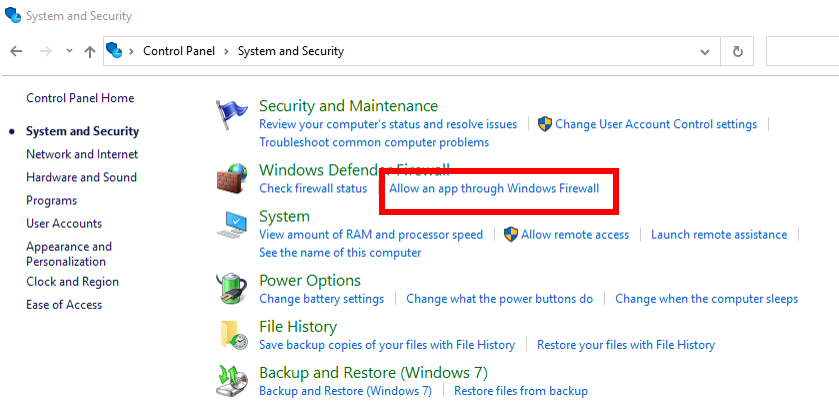
・Open the Control Panel and click System and Security

・Under Windows Defender Firewall section, click Allow an app through Windows Firewall
・Click the Change settings button
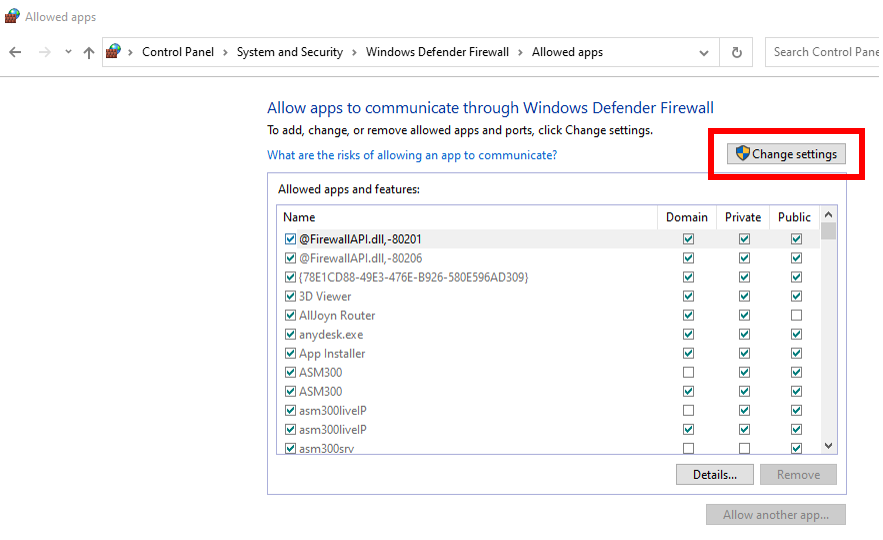
・Click the Allow another apps... button

・Click the Browse... button
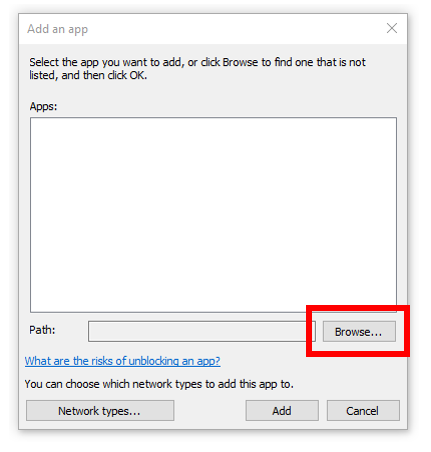
・Select "asm300ope.exe" and click the Open button
Depending on the ASM300 software version, the file can be located in either of these folders:
C:\Program Files (x86)\i-PRO\asm300

・Select "asm300ope.exe", or ASM300 (however it’s displayed) and click the Add button
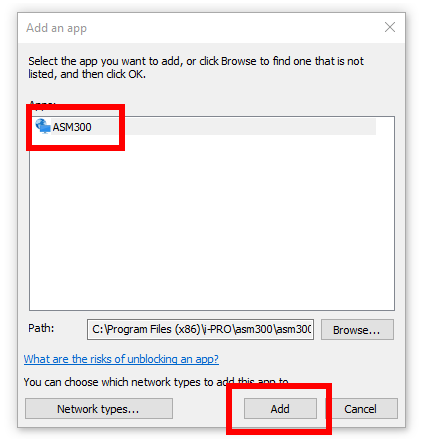
・Repeat these steps in the same manner to add the following:
◦ "asm300liveIP.exe" located in C:\Program Files (x86)\i-PRO\asm300\asm300liveIP.exe
◦ "asm300srv.exe" located in C:\Program Files (x86)\i-PRO\asm300\asm300srv.exe
◦ "asm300tlsrv.exe" located in C:\Program Files (x86)\i-PRO\asm300\asm300tlsrv.exe
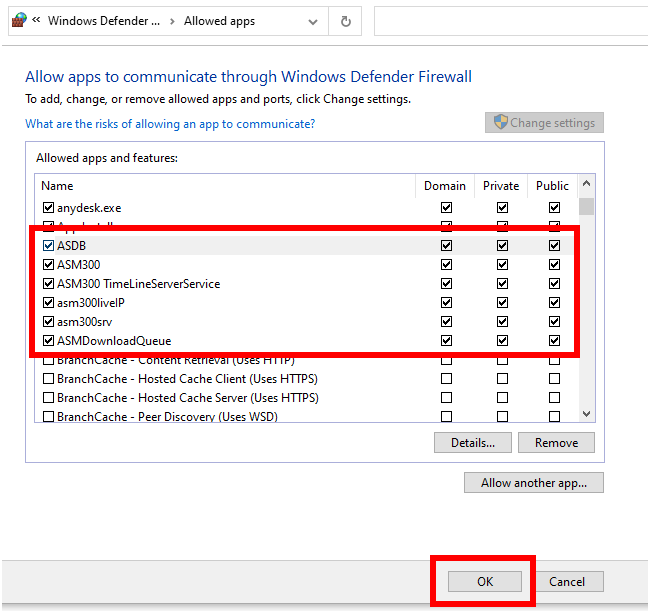
◦ "ASMDownloadQueue.exe" located in C:\Program Files (x86)\i-PRO\asm300\ASMDownloadQueue.exe
◦ "ASDBService.exe" located in C:\Program Files (x86)\i-PRO\ASM300\ASDBService.exe
・Confirm all service are selected and the applicable networks are also selected, then click the OK button
Article number:us-fr124726
Last updated:June 19, 2025
Was this article helpful?